Step 1
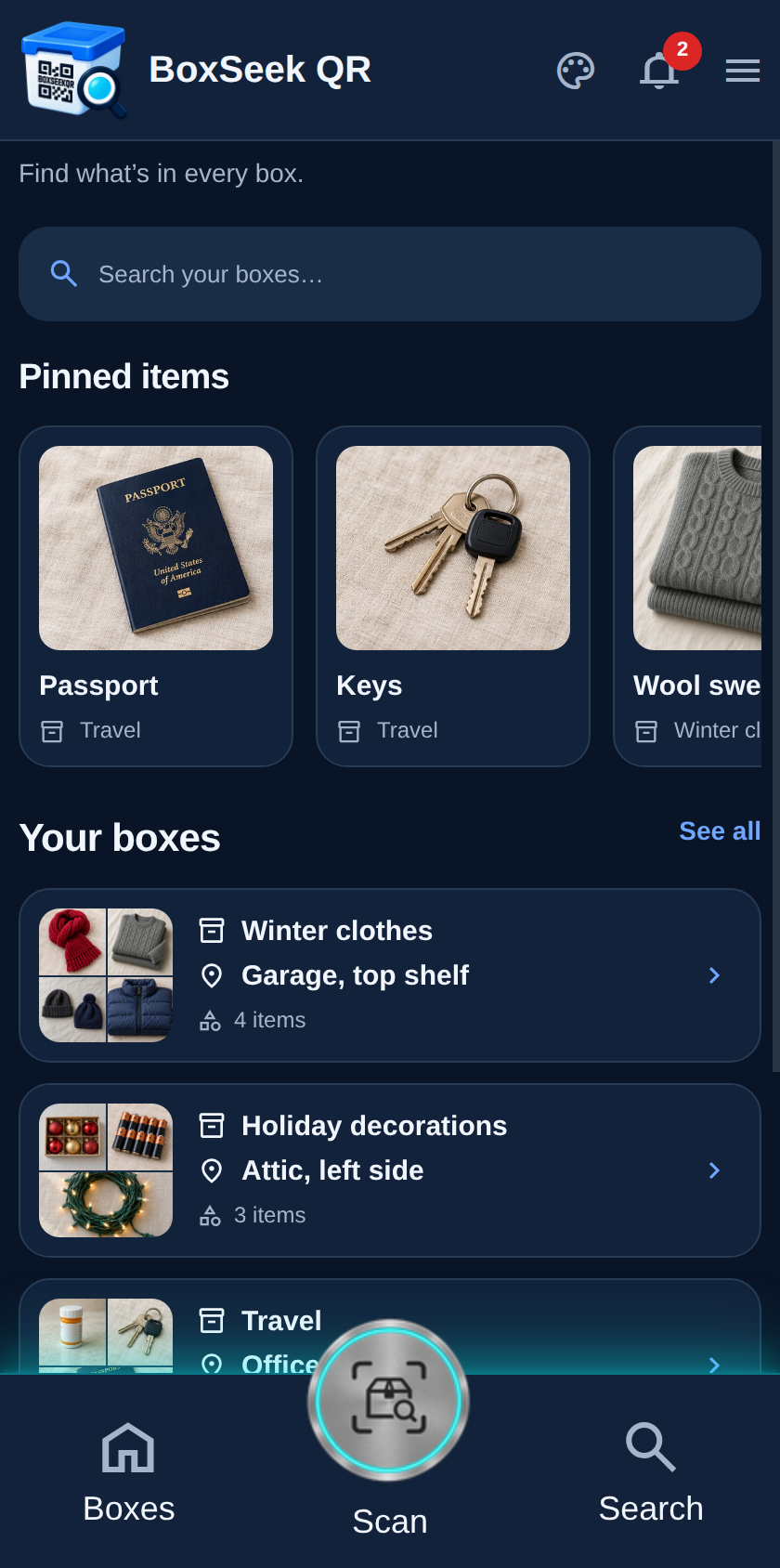
Pinned items on Home
Home shows a Pinned items strip above Your boxes. The demo pins Passport and Keys—typical “grab and go” items—so they stay visible every time you open the app.
 BoxSeek QR
Tutorial
Tutorial 09
Pin the belongings you reach for most. They stay on Home—above Your boxes—so you open them in one tap instead of searching or digging through every box.
Home shows a Pinned items strip above Your boxes. The demo pins Passport and Keys—typical “grab and go” items—so they stay visible every time you open the app.
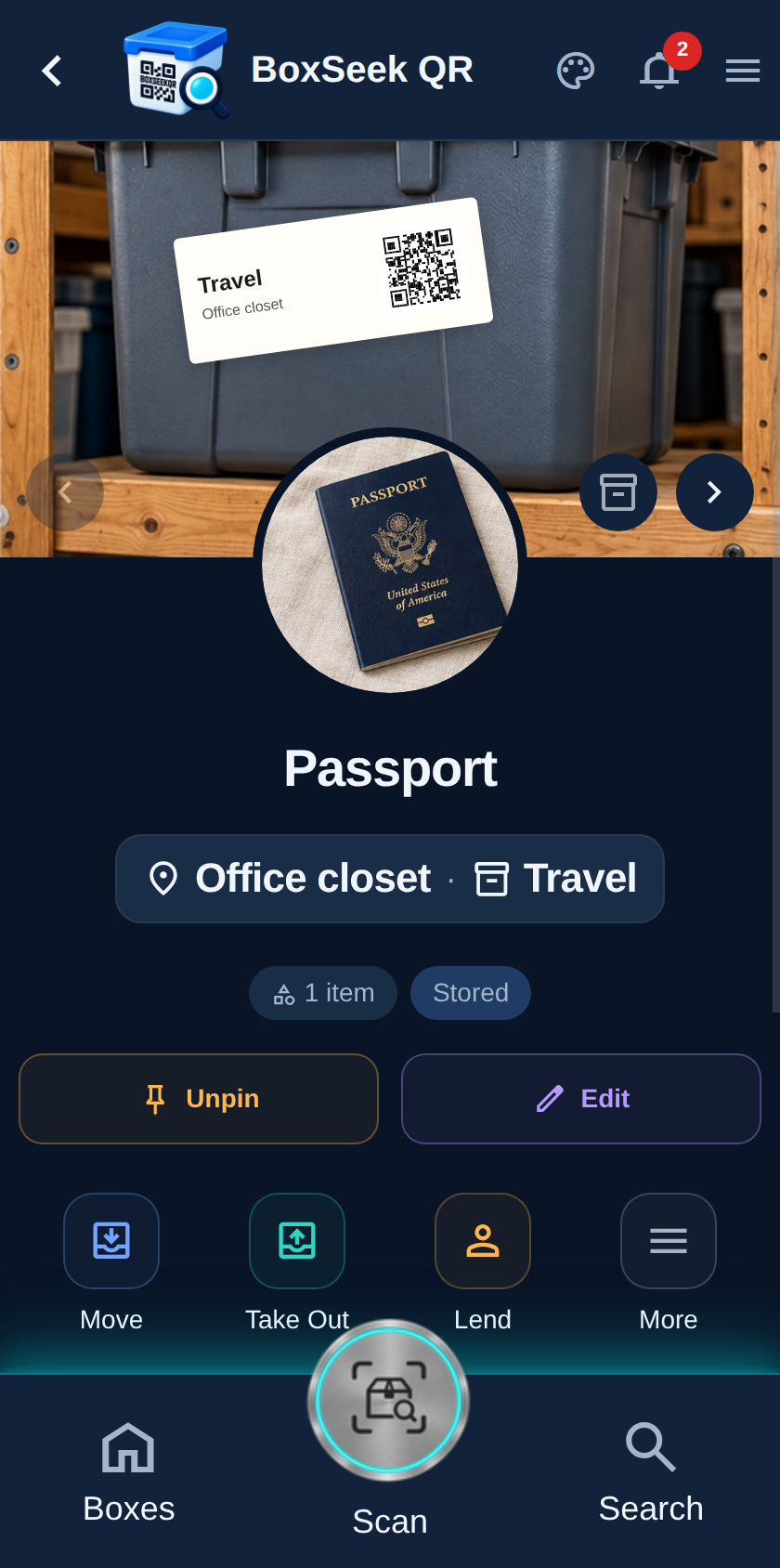
Tap a pinned card to open that item. The card also shows which box it lives in, so after you check the record you still know where to look on the shelf.
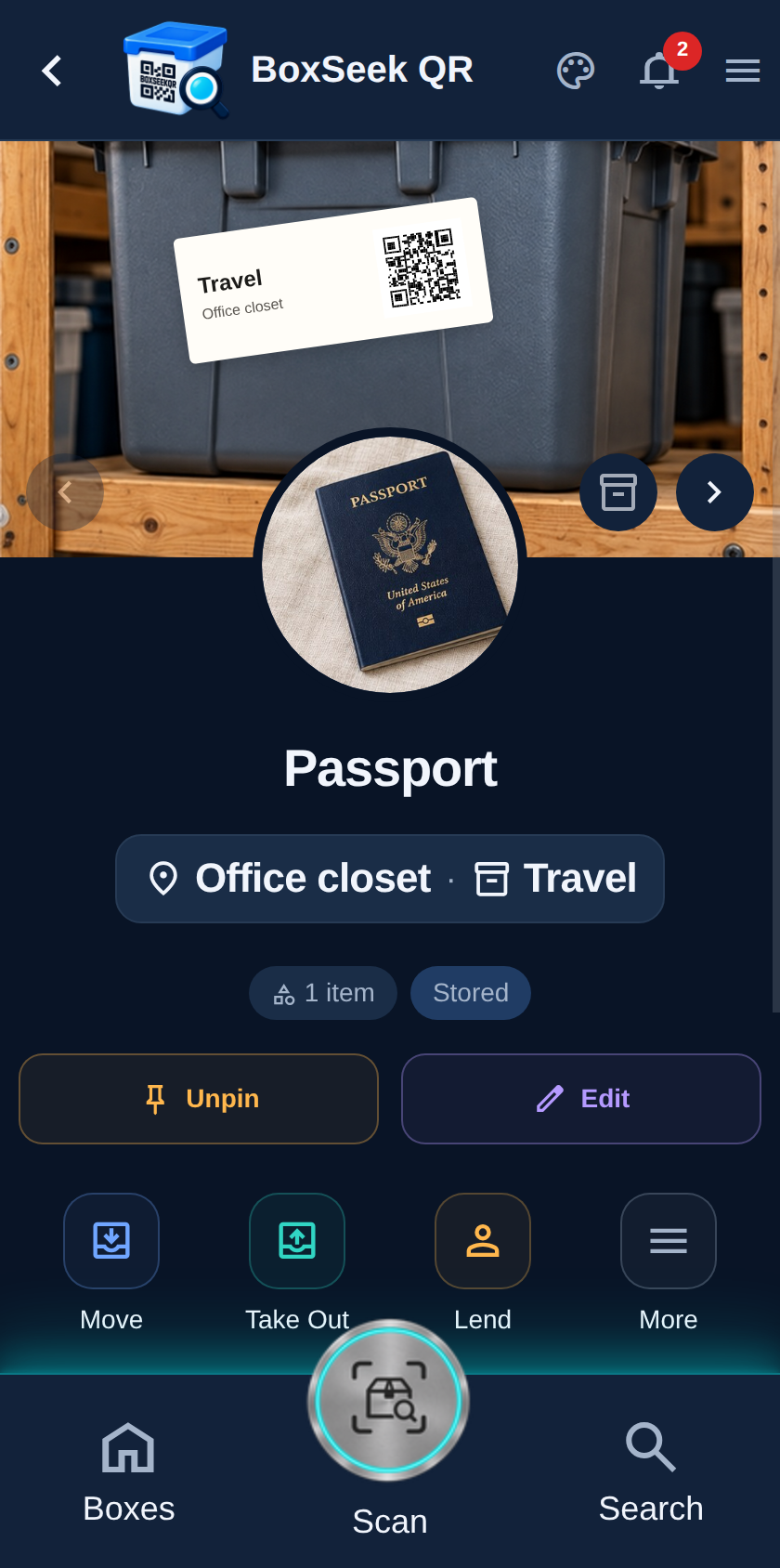
On the item, Pin / Unpin toggles the Home strip (you can also use Pin this item when editing). Pin essentials you reach for often. Unpin when something is no longer a daily grab so the strip stays short and useful.
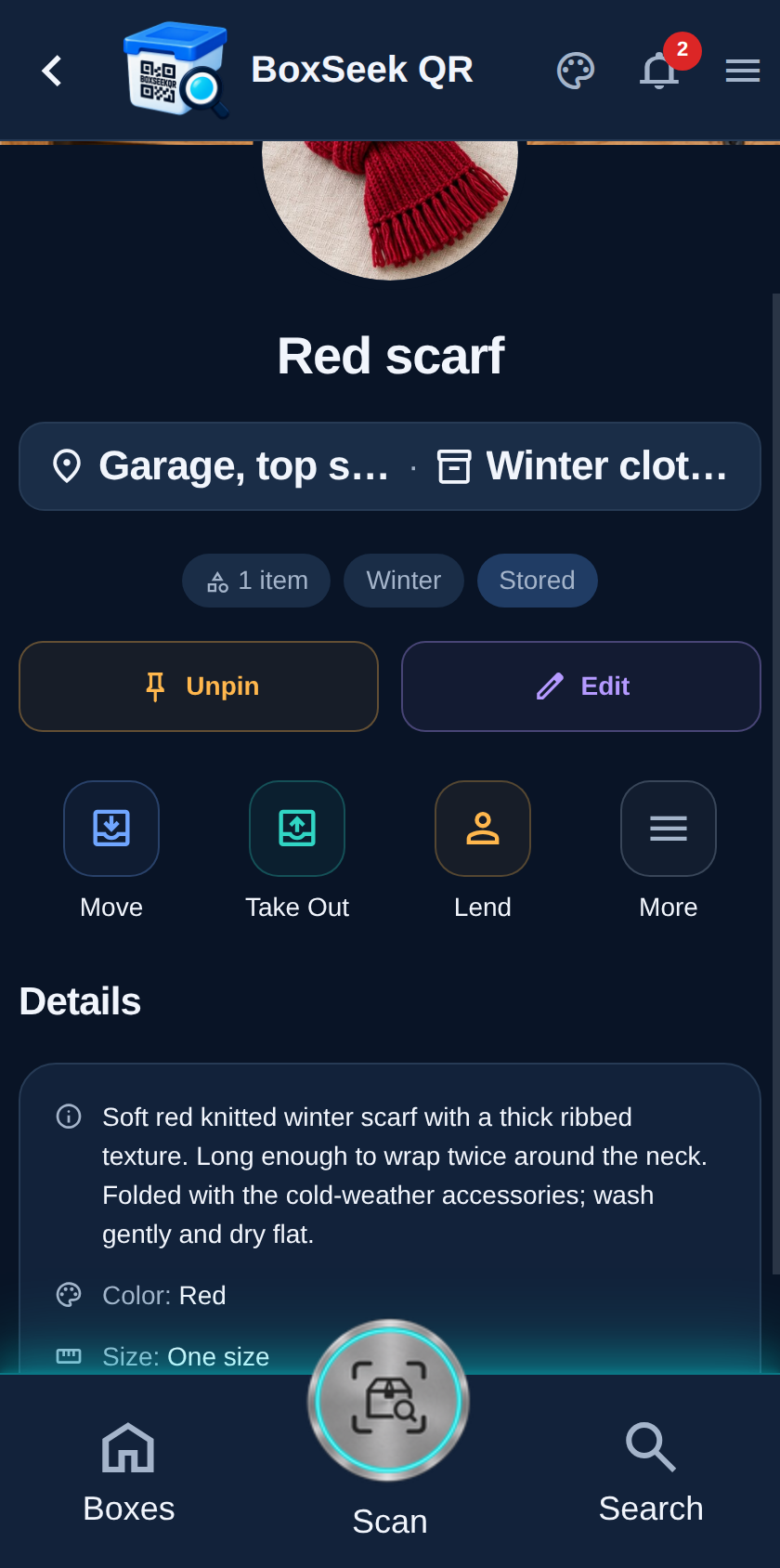
Open any stored item and tap Pin. Here Red scarf joins the strip—a seasonal favorite becomes as easy to reach as Passport, without leaving Home hunting for Winter clothes first.
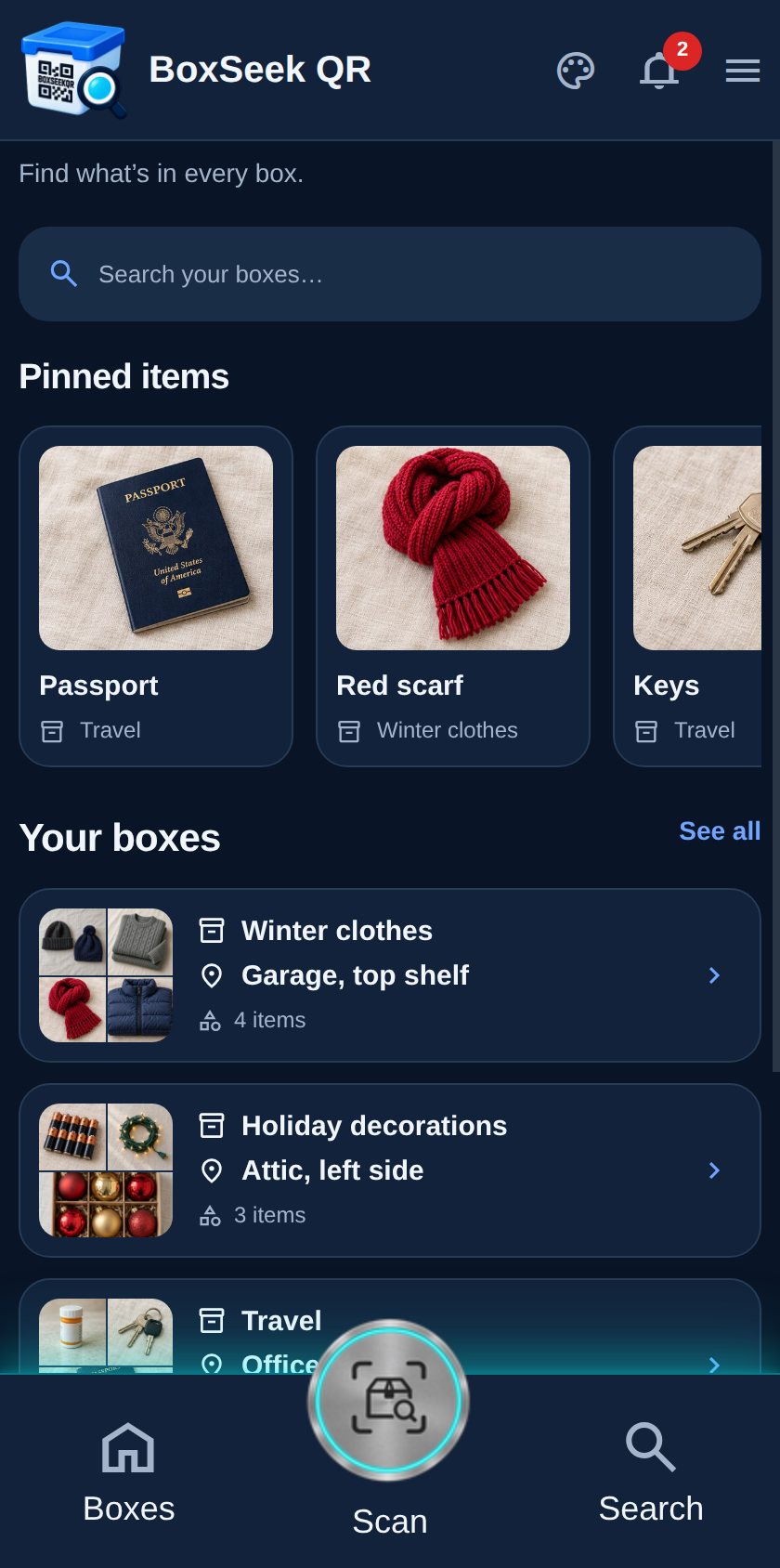
Back on Home, Red scarf sits with Passport and Keys. Pinning keeps high-use belongings visible without Search or box hopping—while each card still names the box so you know where the physical thing is. That is the point: less hunting, same inventory truth.