Step 1
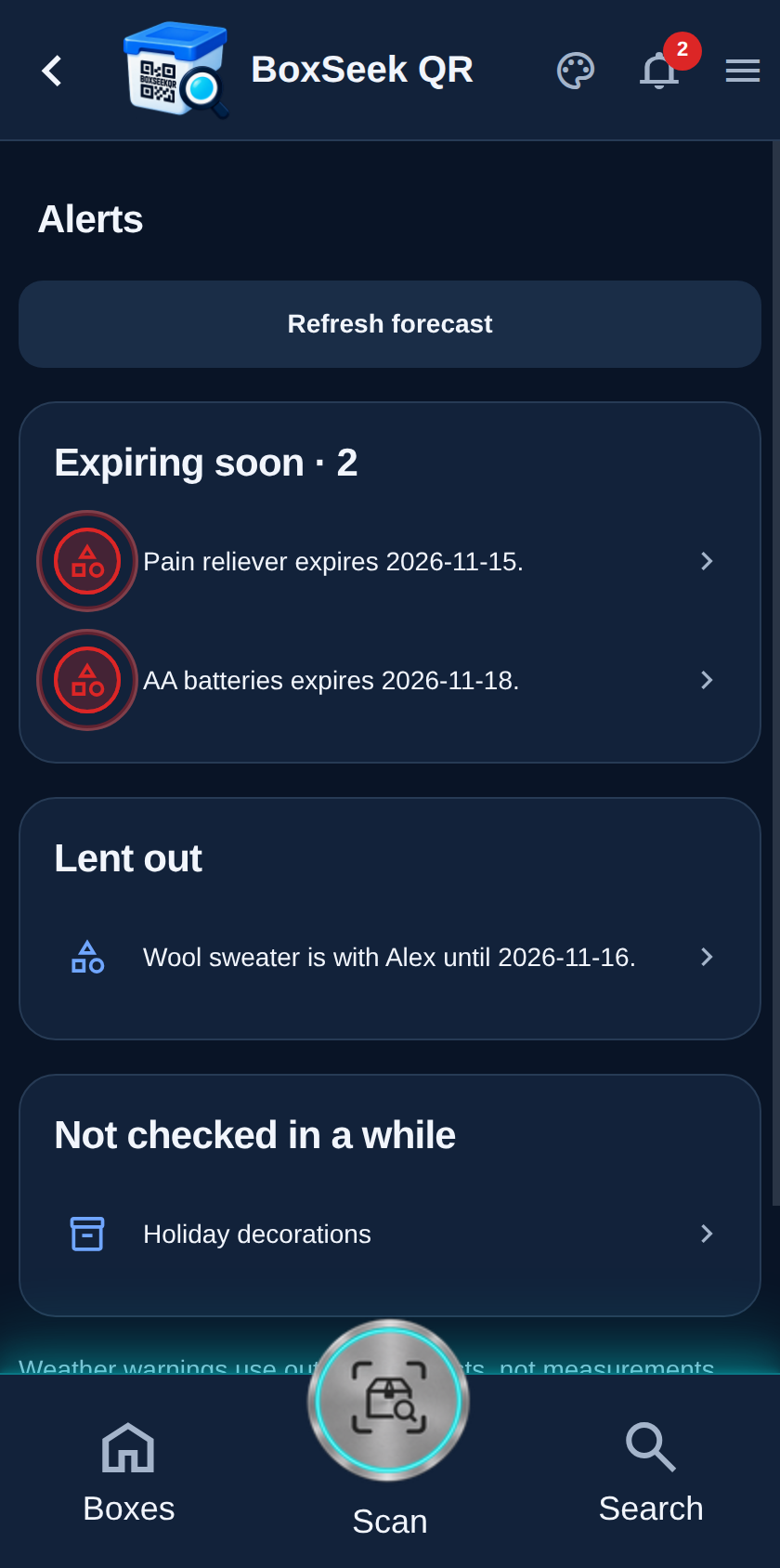
Open Alerts
Tap the bell in the top bar. The red badge counts urgent rows: expired or expiring soon, overdue loans, and active cold or heat warnings. Everything else still appears on the page without raising the badge.
 BoxSeek QR
Tutorial
Tutorial 08
The bell gathers what needs attention—expiries, loans, neglected boxes, replacements, and cold or heat warnings—so you do not have to open every box to stay current.
Tap the bell in the top bar. The red badge counts urgent rows: expired or expiring soon, overdue loans, and active cold or heat warnings. Everything else still appears on the page without raising the badge.
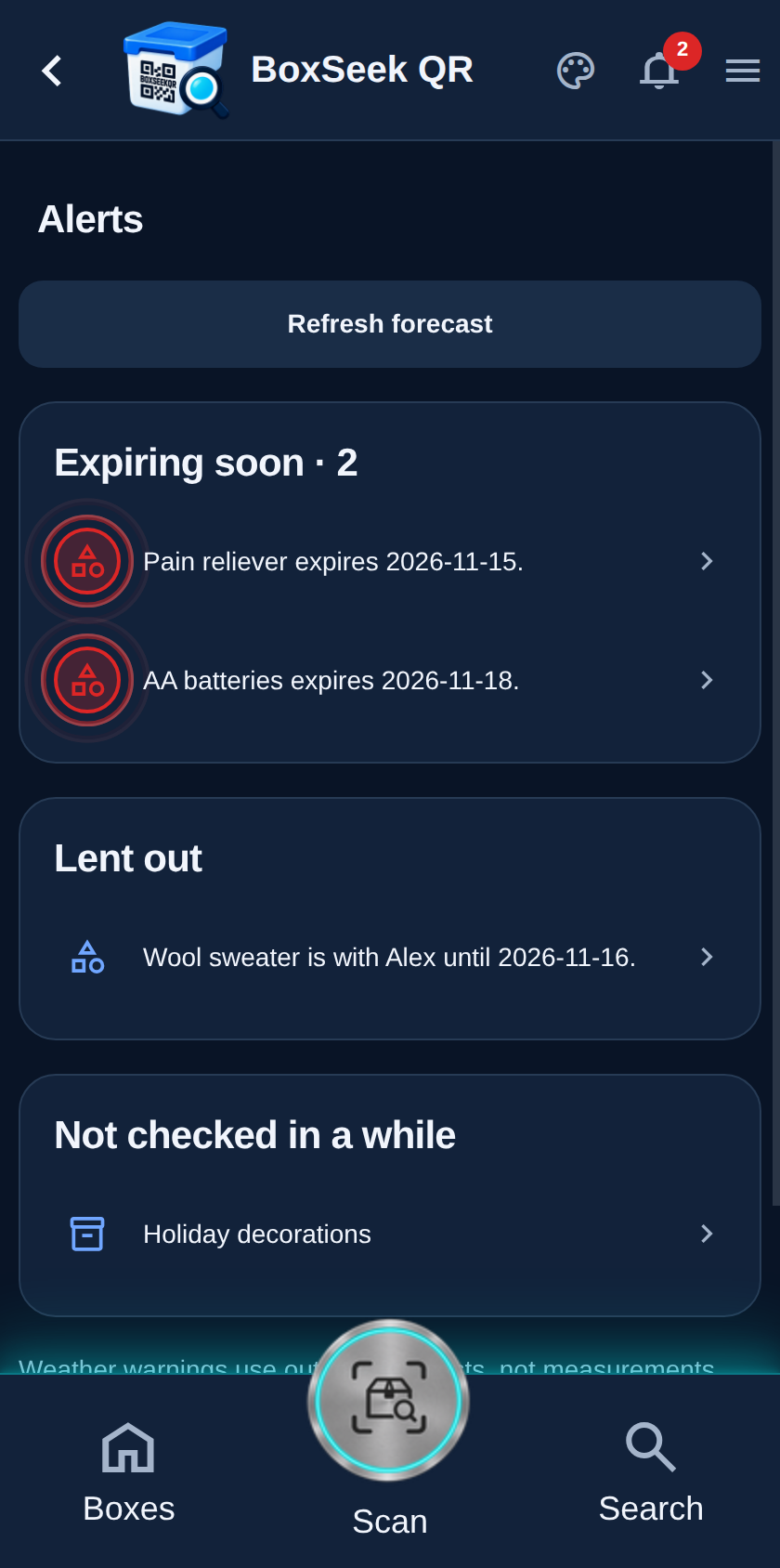
Expiring soon groups items whose expiry date falls within your lead time (adjustable under More). The demo loads Pain reliever and AA batteries with sample dates so this section is easy to explore.
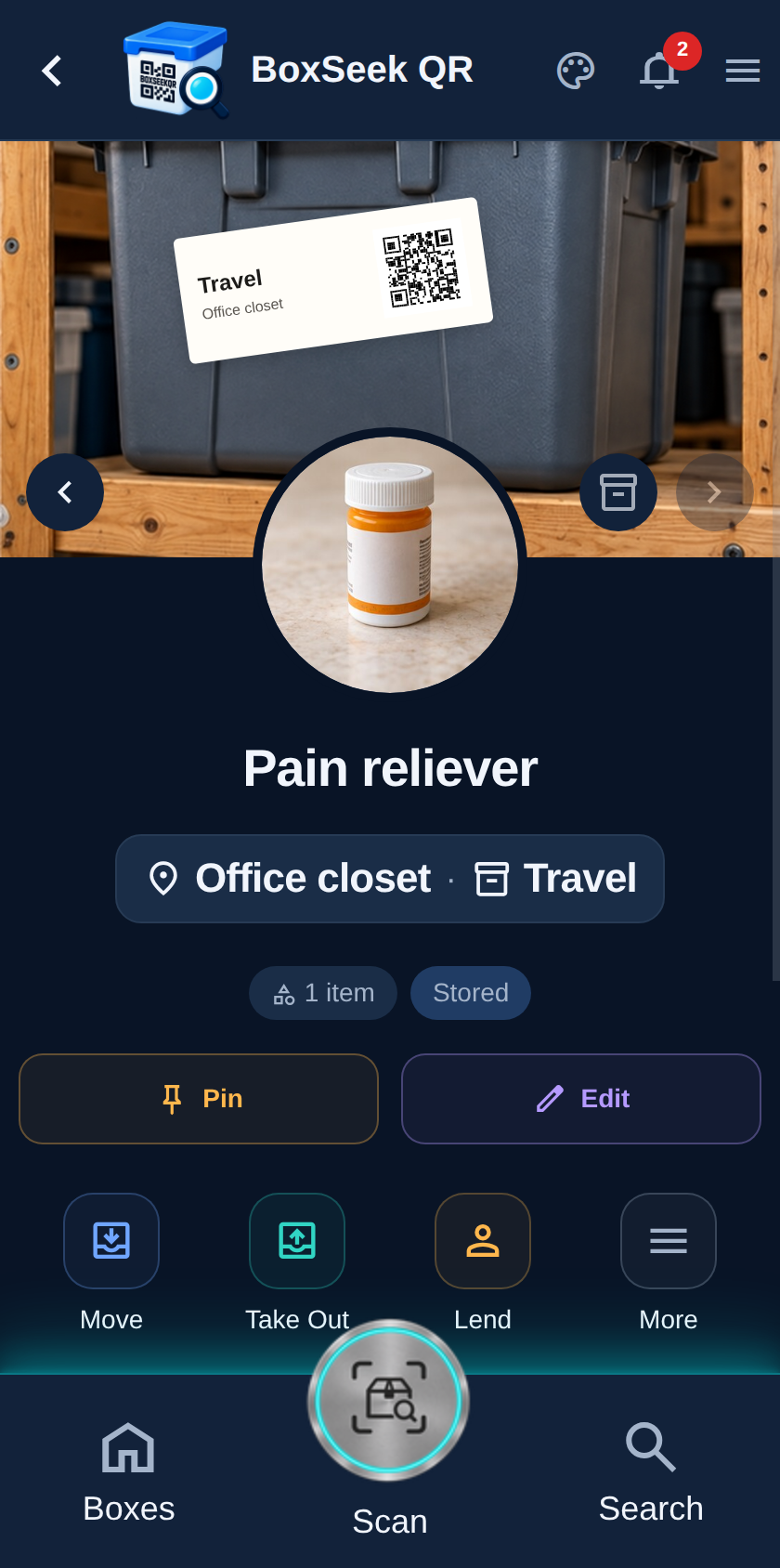
Tap a row to jump to that item or box. From the item you can edit the expiry, take it out, or otherwise clear the situation that created the reminder.
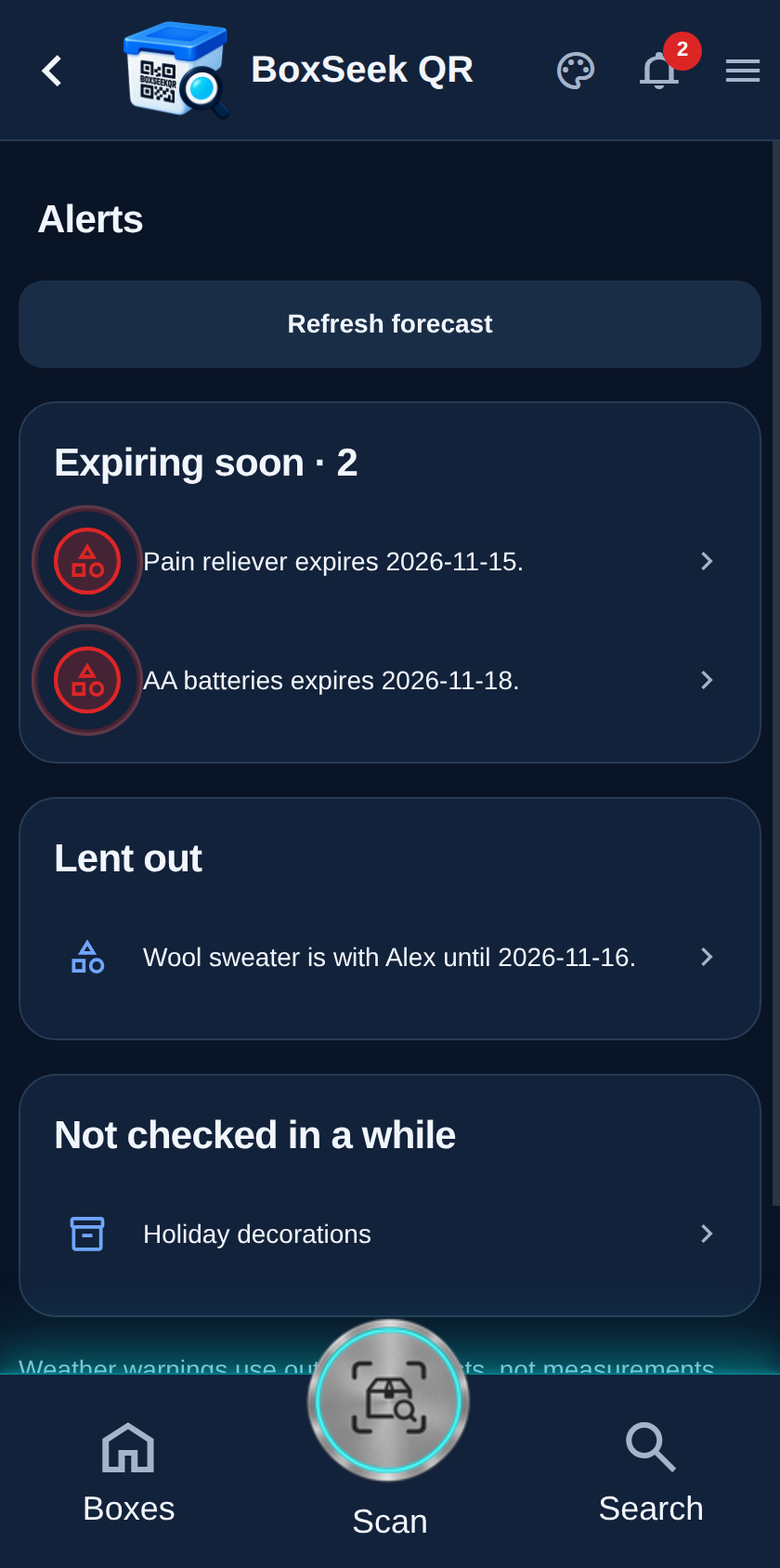
Lent out lists active loans—who has each item and when it is due. Overdue loans light the red badge. Mark Returned on the item when it comes back and the row clears.
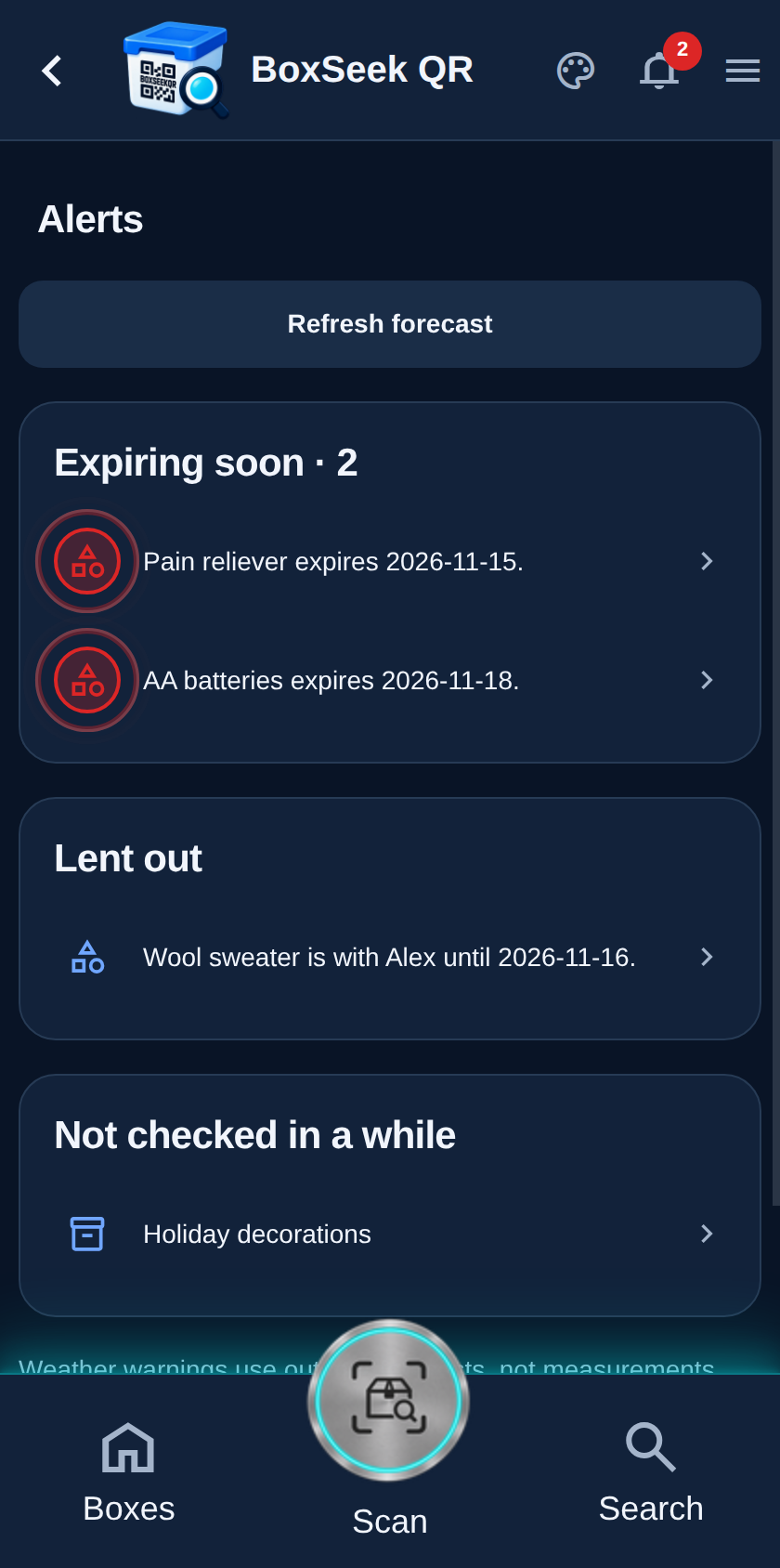
Boxes you have not opened or checked for a long time appear here. The demo’s Holiday decorations is one example. Tap the row to open the box and refresh what is inside.
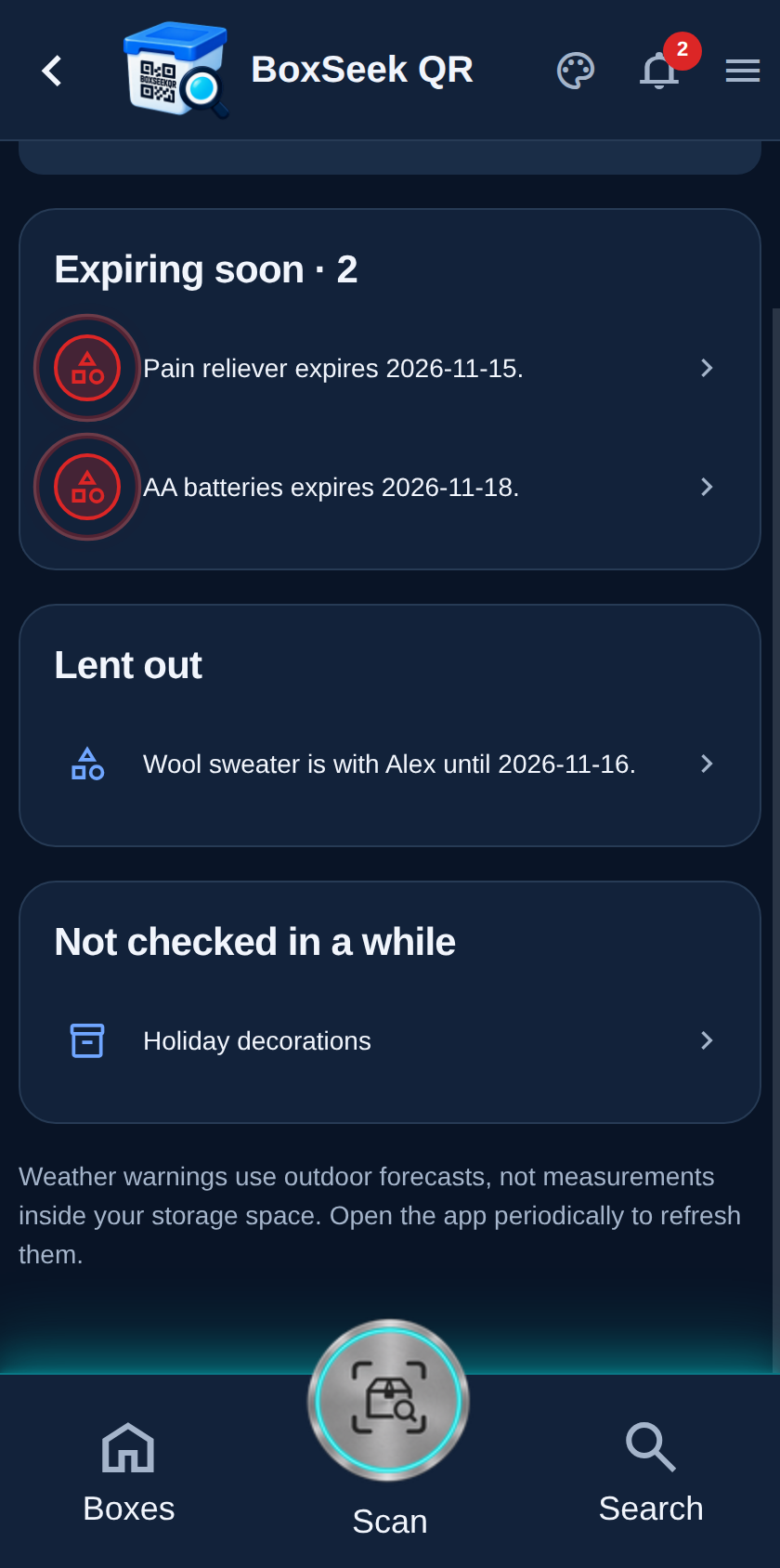
Refresh forecast updates outdoor weather once you set a city under More—powering cold and heat care alerts on stored items. Needs replacement appears when something is Taken out. The page always notes that forecasts are outdoor readings, not the temperature inside your storage space.