Step 1
Open the item
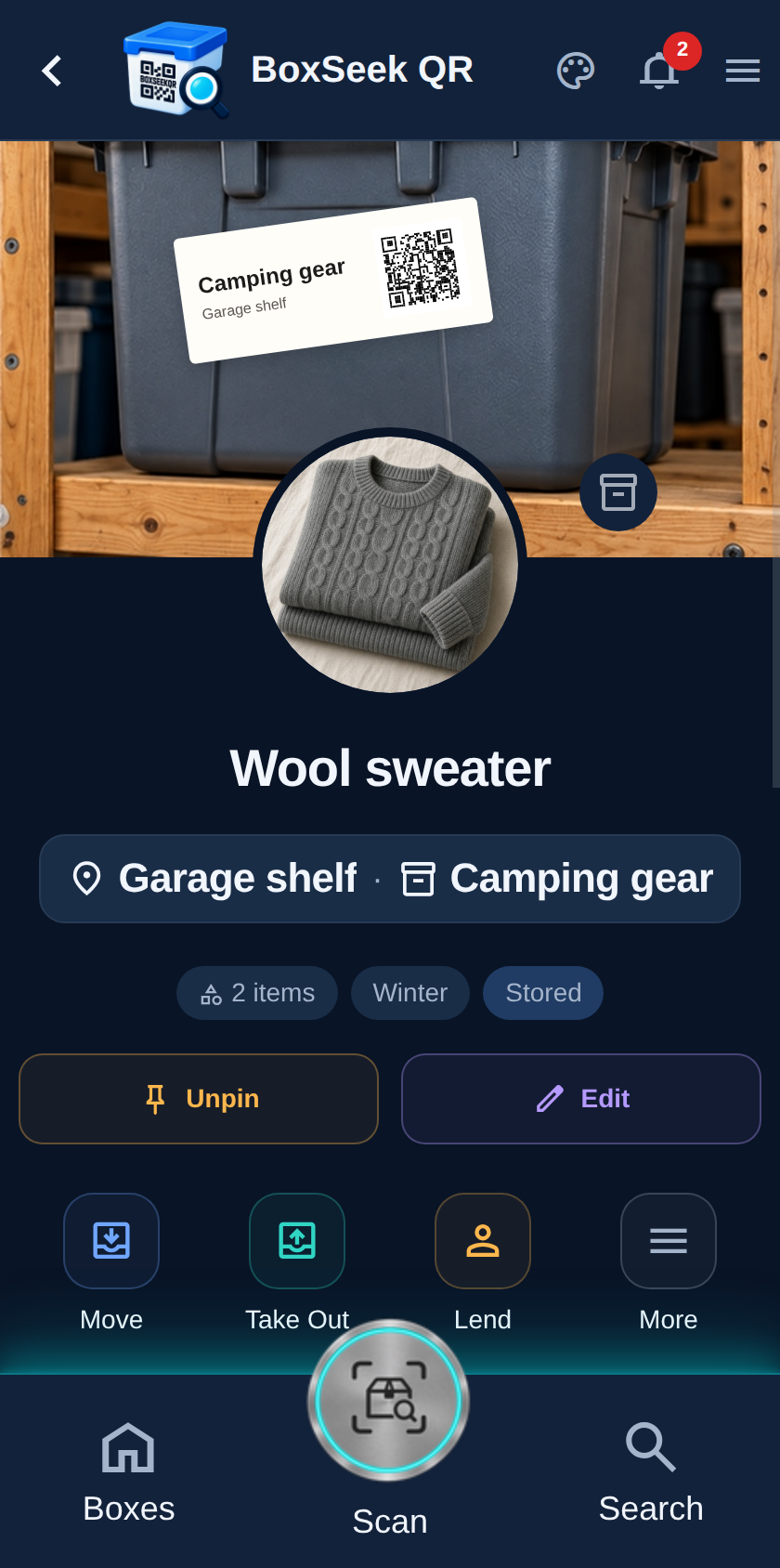
Open a stored item—here Wool sweater in Camping gear. Lend sits with Move and Take out. Use Lend when the thing is out with a person; use Take out when you removed it from storage without a borrower.
 BoxSeek QR
Tutorial
Tutorial 06
When something leaves your shelf but still belongs to you, record who has it. Lending keeps the inventory row alive with a borrower, optional return date, and notes—then Alerts remind you until it comes back.
Open a stored item—here Wool sweater in Camping gear. Lend sits with Move and Take out. Use Lend when the thing is out with a person; use Take out when you removed it from storage without a borrower.
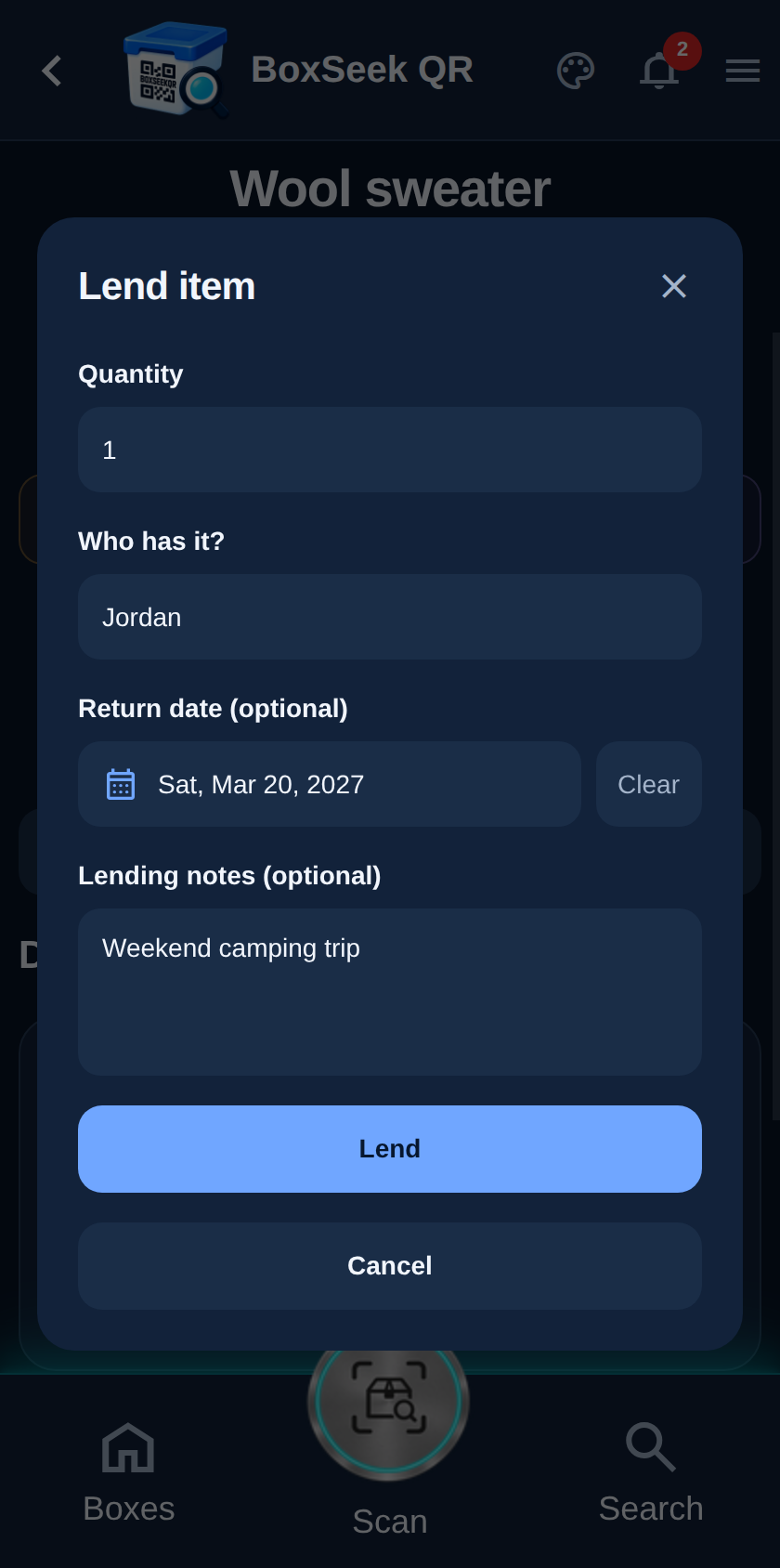
Tap Lend. Who has it? is required. Return date and Lending notes are optional but useful—notes like “Weekend camping trip” jog your memory later. If quantity is more than one, you can lend only part of the stack.
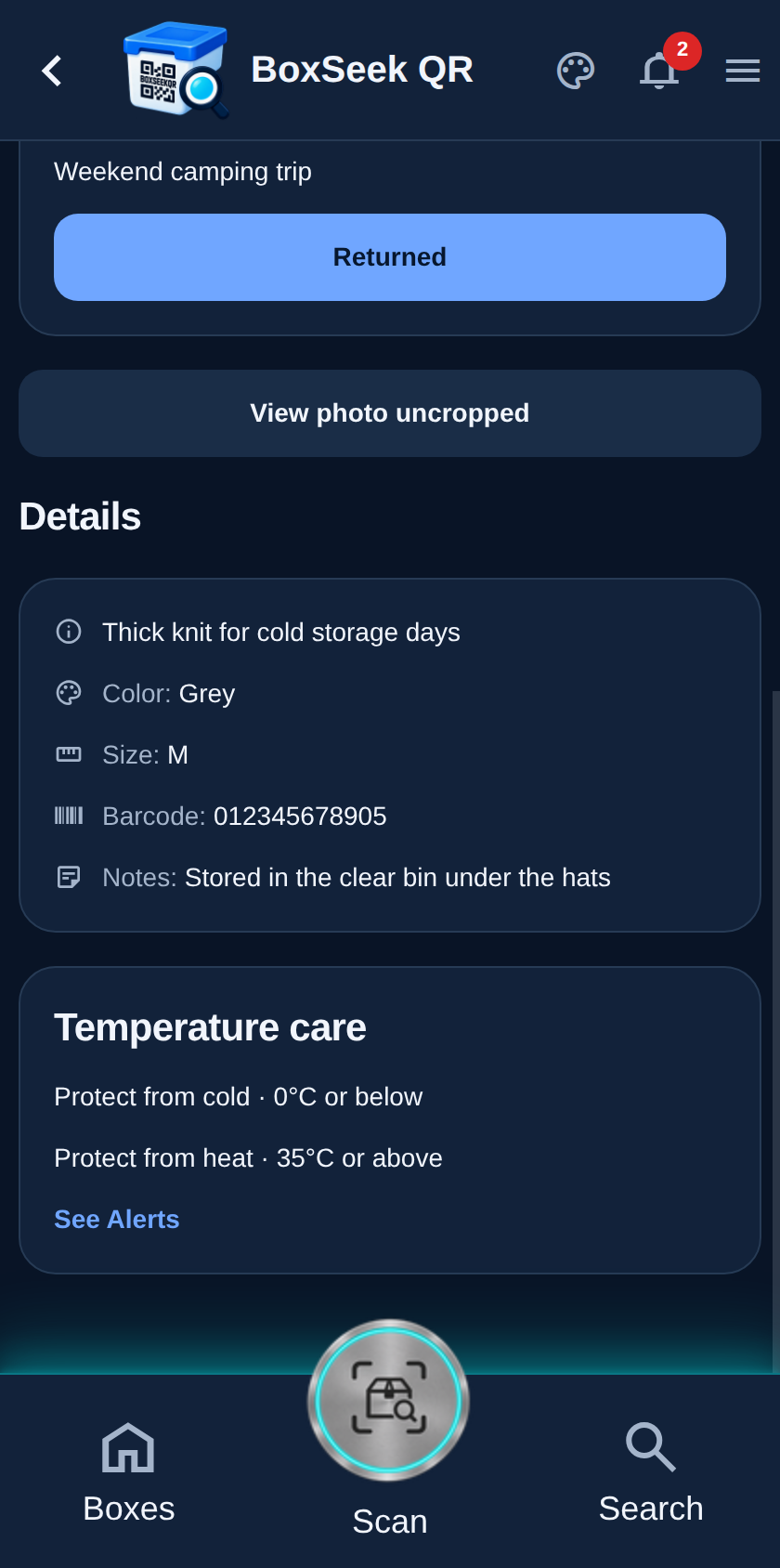
Tap Lend again to save. The item shows Lent to Jordan, the return date, and your notes, with Returned ready for when it comes back. Search and lists also show “Lent to …” so you do not hunt a shelf that is empty.
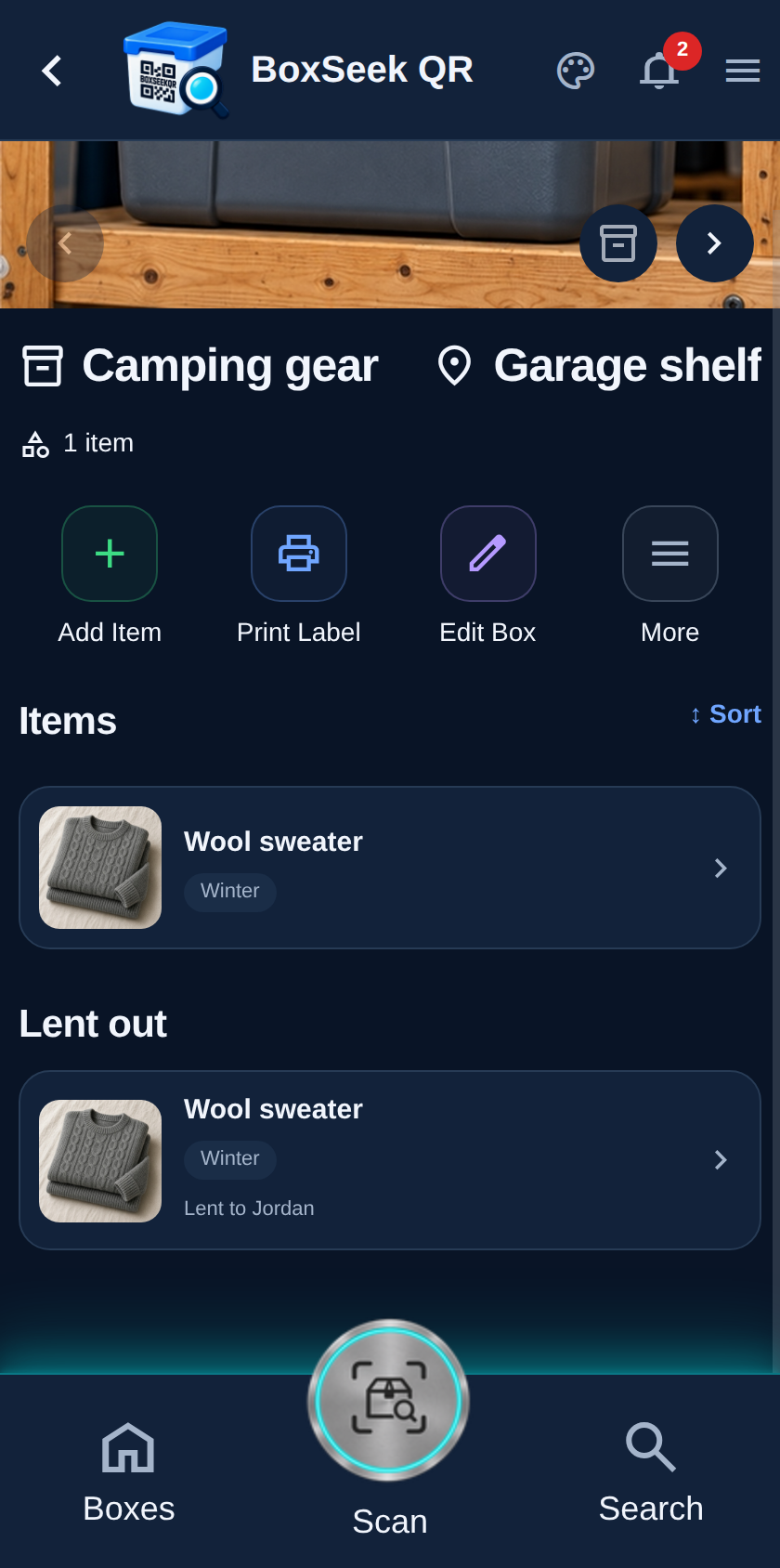
Open the box. Lent out lists loans from that box under the stored items, so one glance shows what is missing from the shelf.
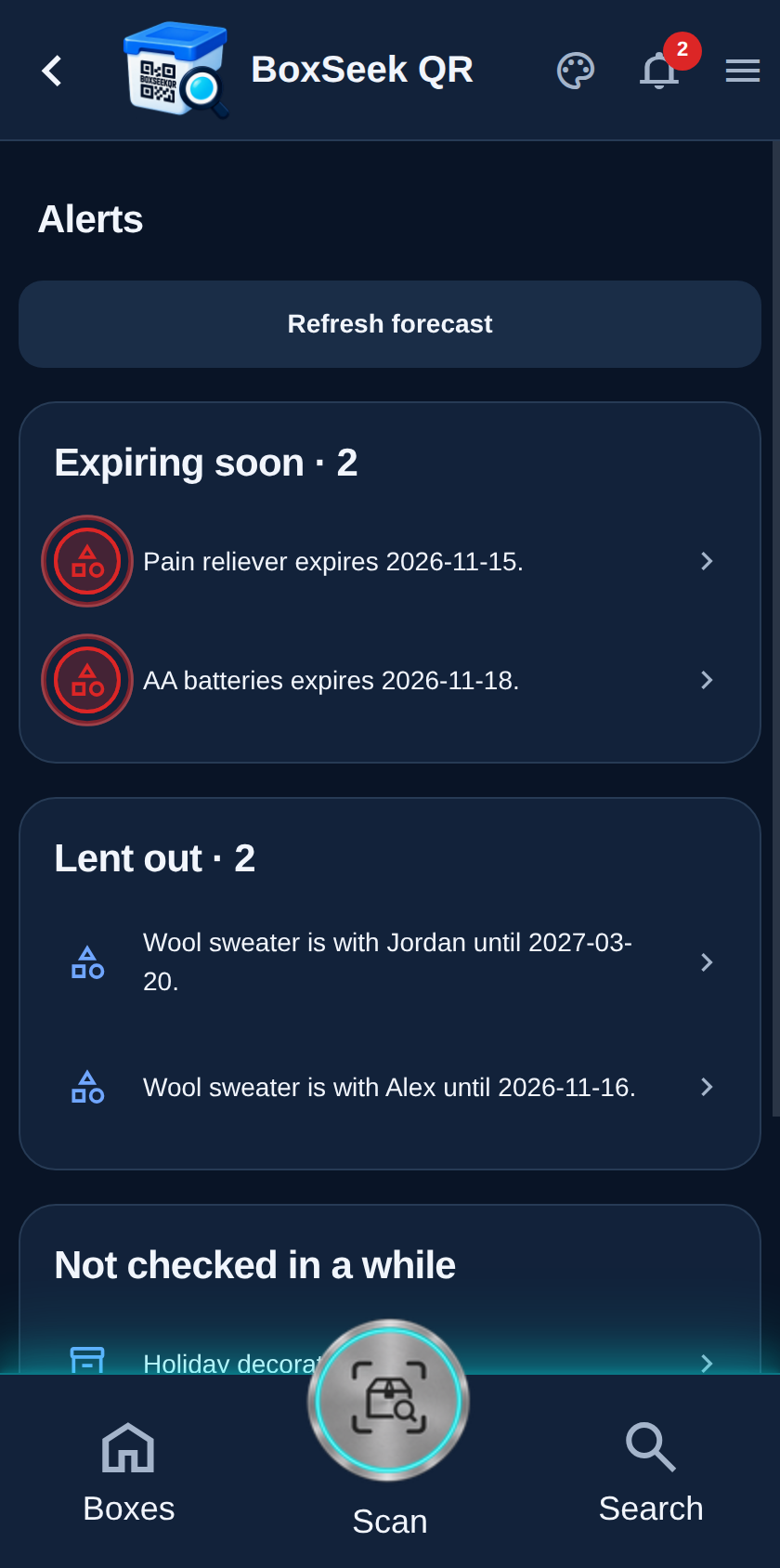
The bell opens Alerts. Lent out groups who has each item and when it is due. Tap a row to jump straight back to that loan—especially helpful when something is overdue.
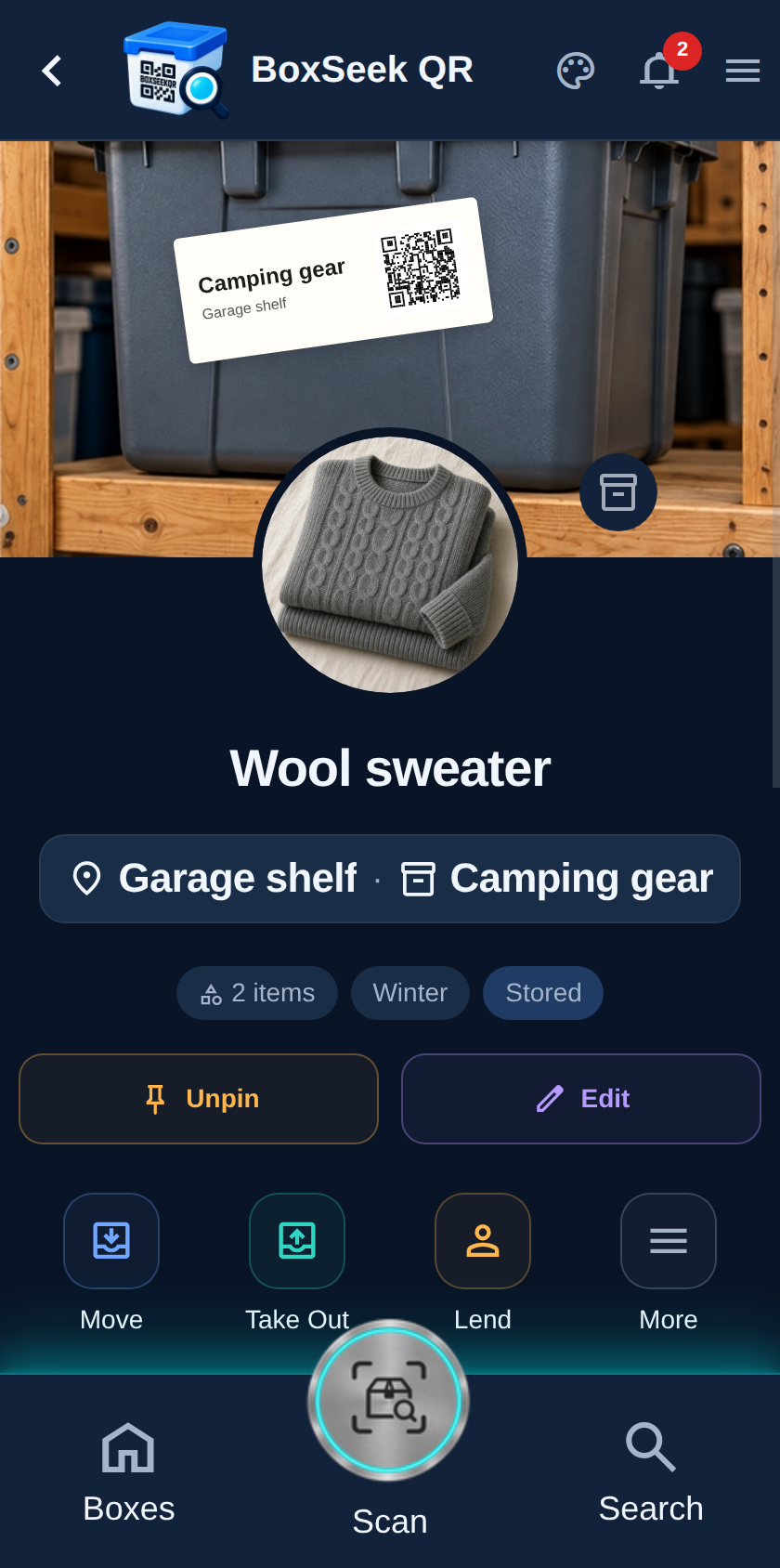
When the item is back, open the loan and tap Returned. It rejoins stored inventory in its box, quantity merges if you had split a stack, and the Lent out reminder clears.