Step 1
Open Search
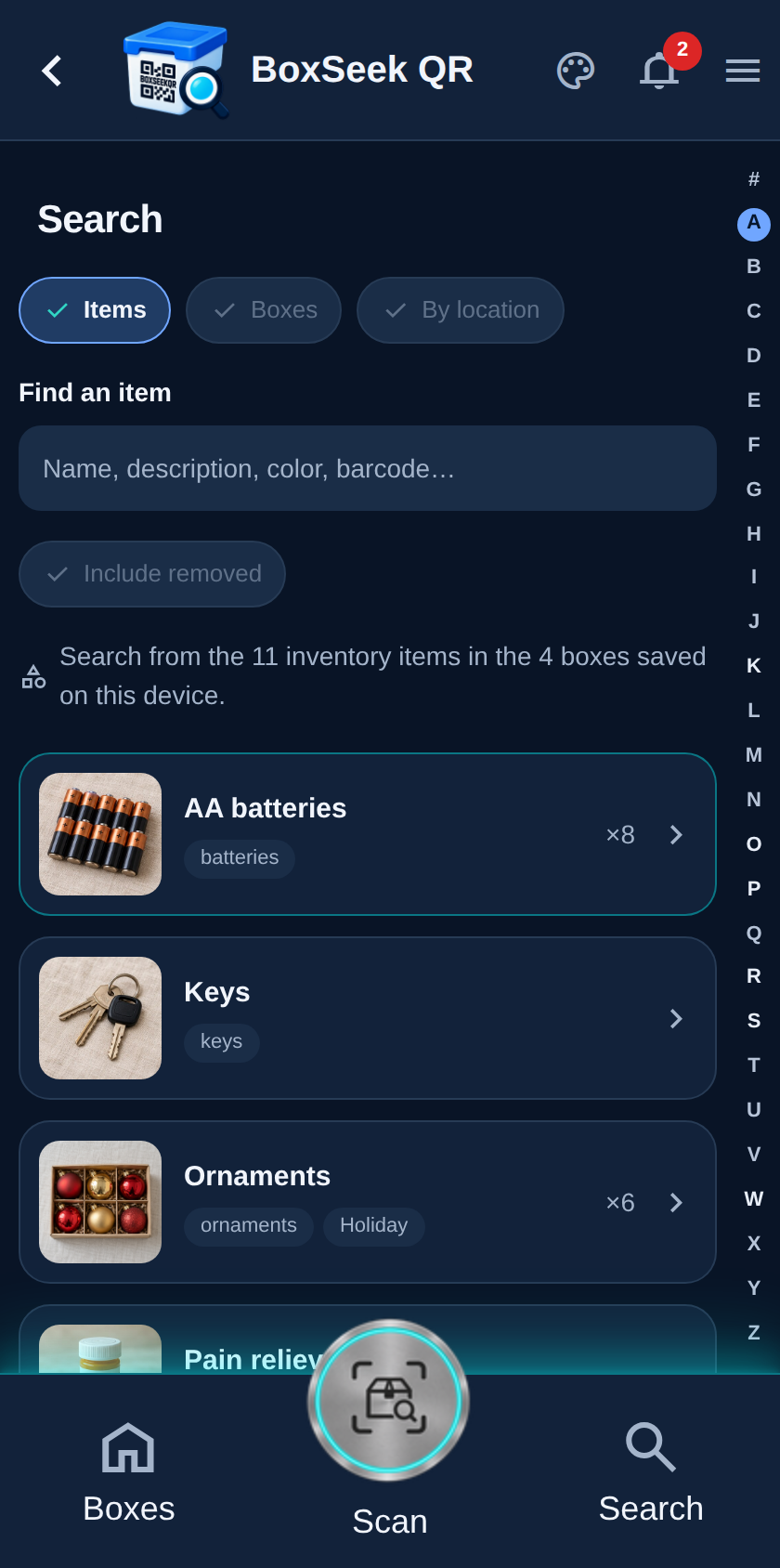
Tap Search in the bottom bar (or the search row on Home). You get three modes at the top: Items, Boxes, and By location. Items is the everyday starting point.
 BoxSeek QR
Tutorial
Tutorial 05
Find belongings without opening every box. Search has three modes—Items, Boxes, and By location—and it works best when you filled in the descriptive fields on each item.
Tap Search in the bottom bar (or the search row on Home). You get three modes at the top: Items, Boxes, and By location. Items is the everyday starting point.
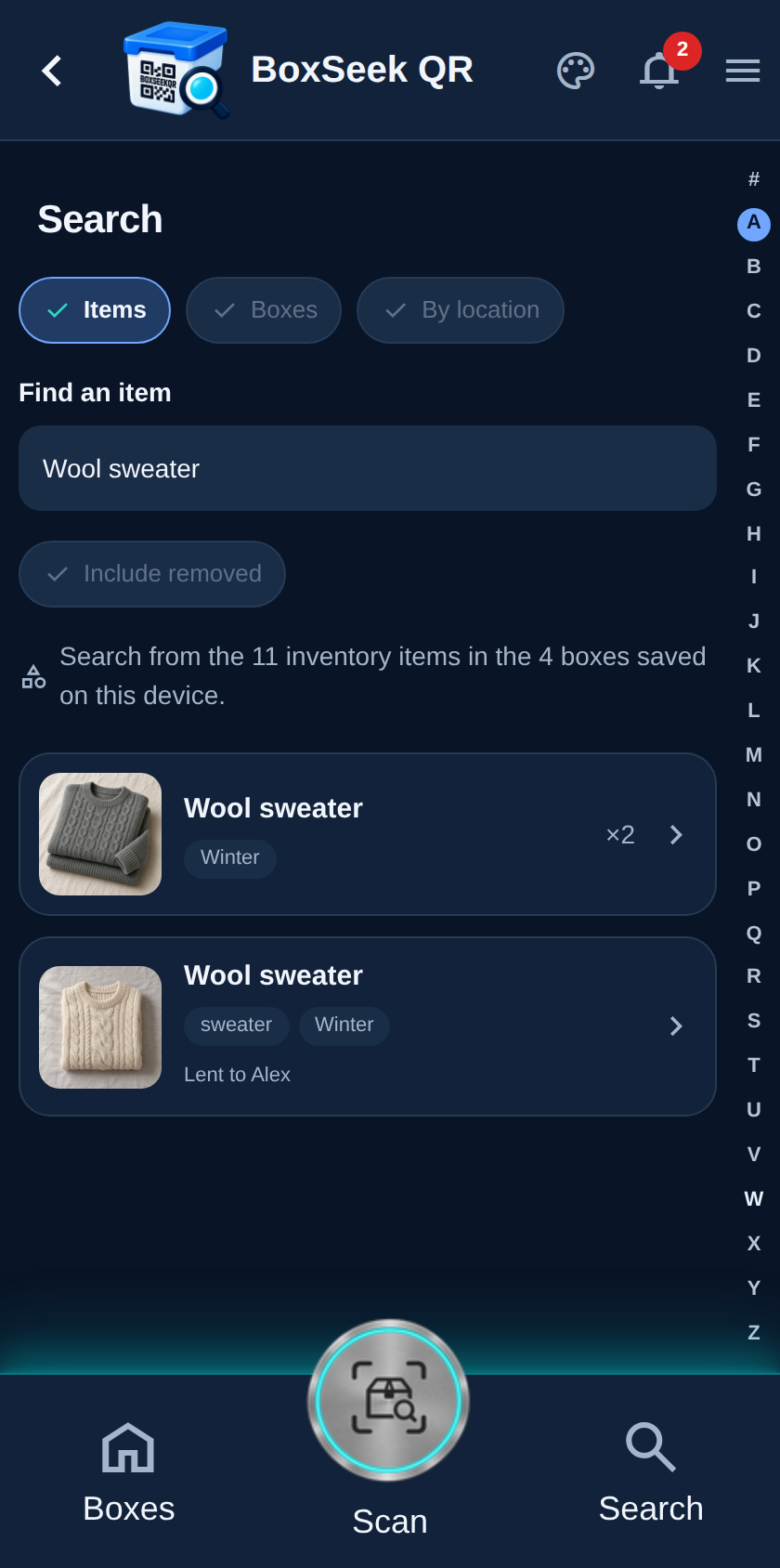
In Items mode, type in Find an item. The field hint lists what you can type: name, description, color, barcode, and related words. A clear name like Wool sweater jumps straight to that belonging.
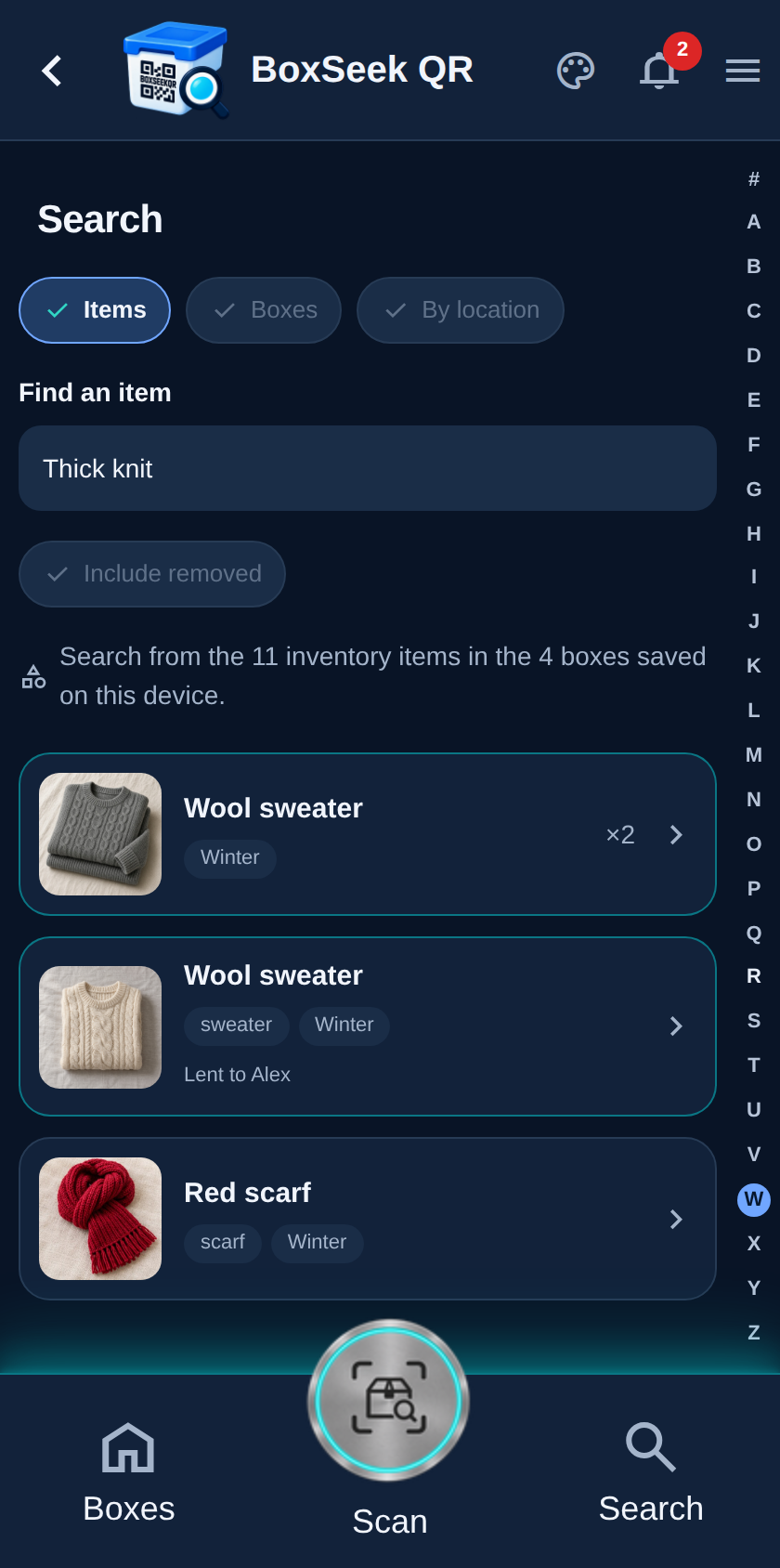
You only need a name and quantity to save an item—but Search reads much more. It matches:
That is why filling description, color, size, and notes pays off later. You can forget the exact name and still find Wool sweater by typing Grey or Thick knit—words you saved when you added it.
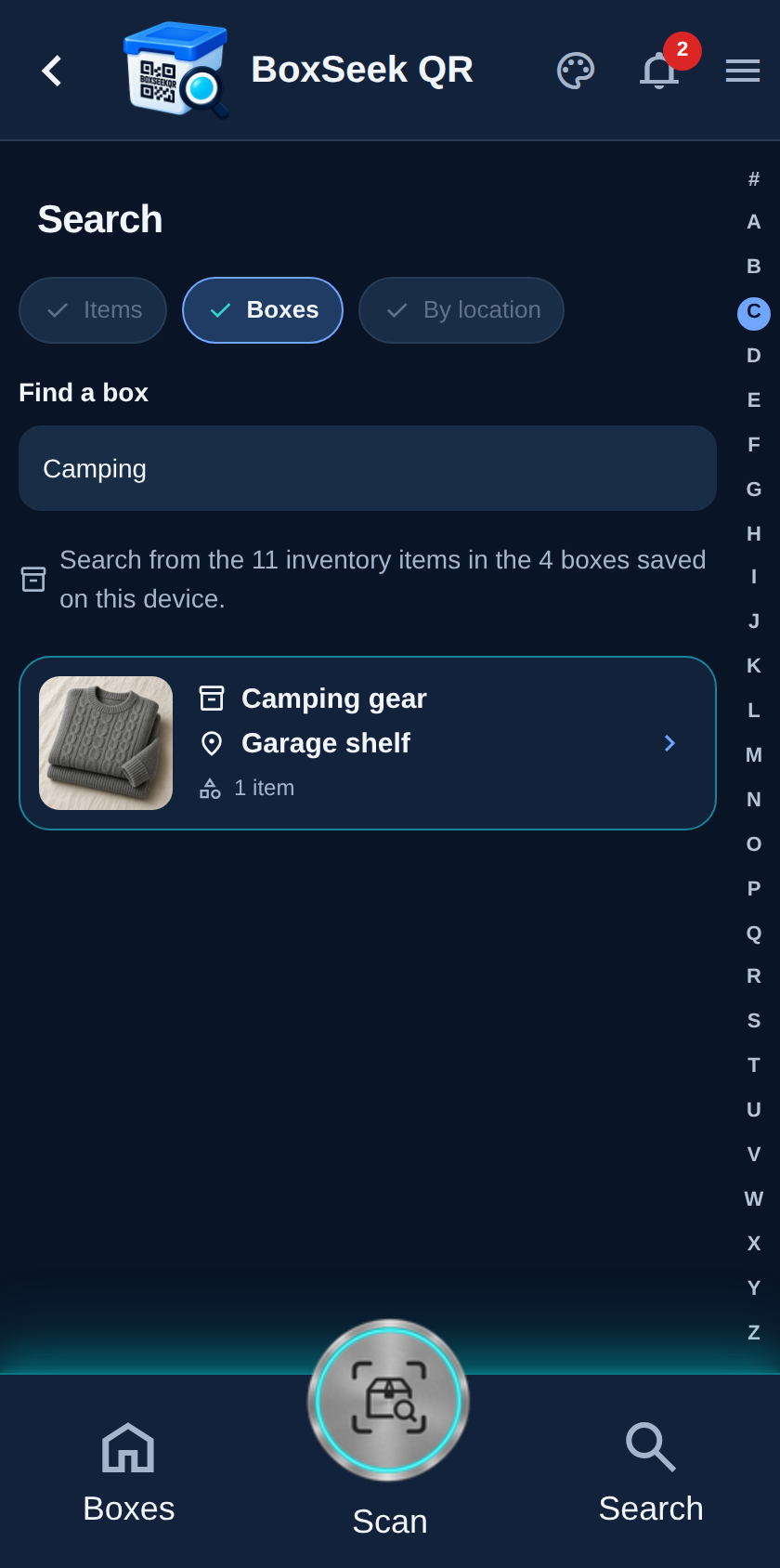
Switch to Boxes. Find a box matches box names and places. Type part of Camping or the place under the box to open the right row without scrolling the full list.
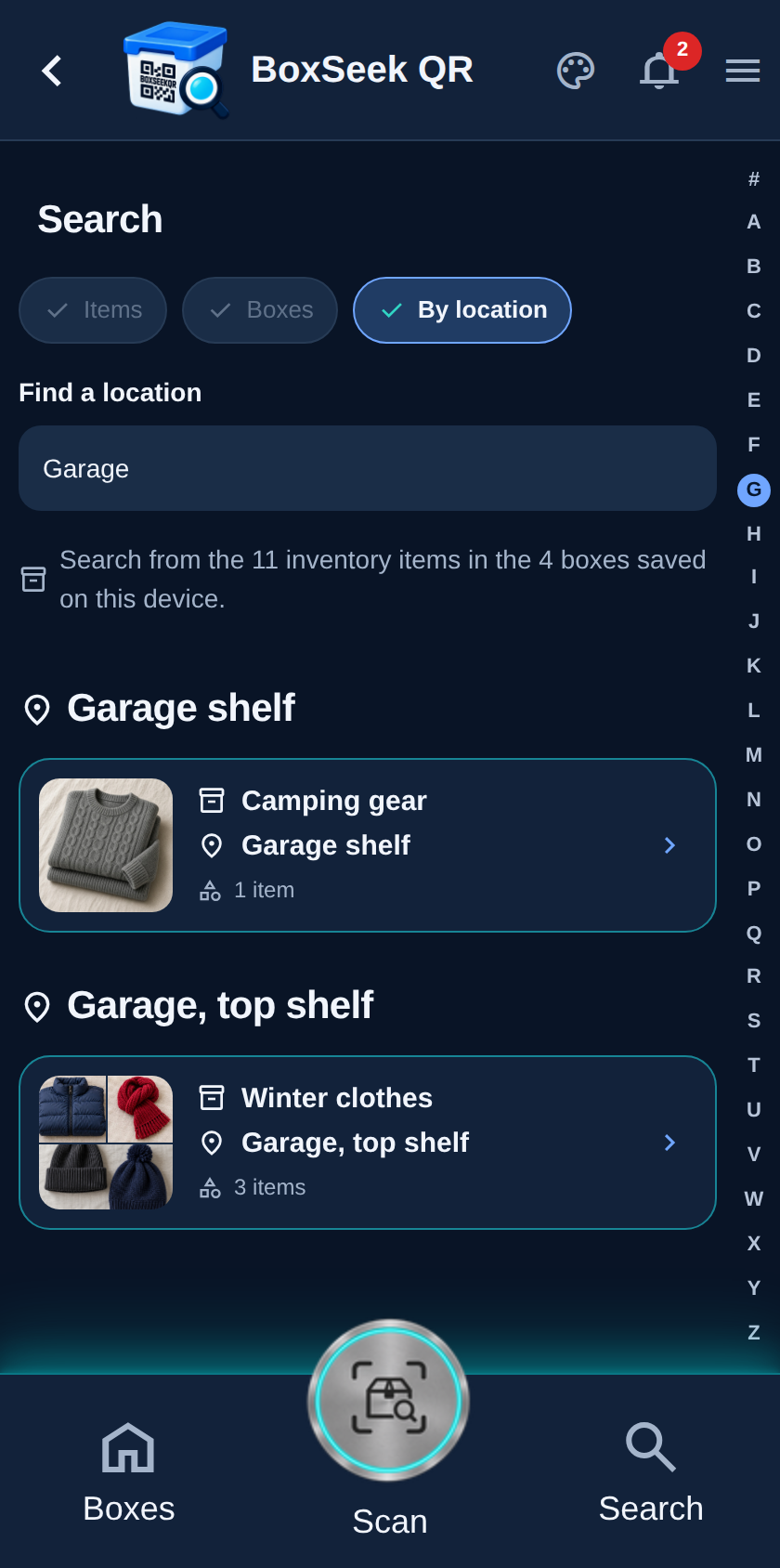
By location groups boxes under the place you typed for each box—Garage shelf, Attic, and so on. Use Find a location when you remember the shelf or room, not the box name. Clear place names when you create boxes make this mode useful.
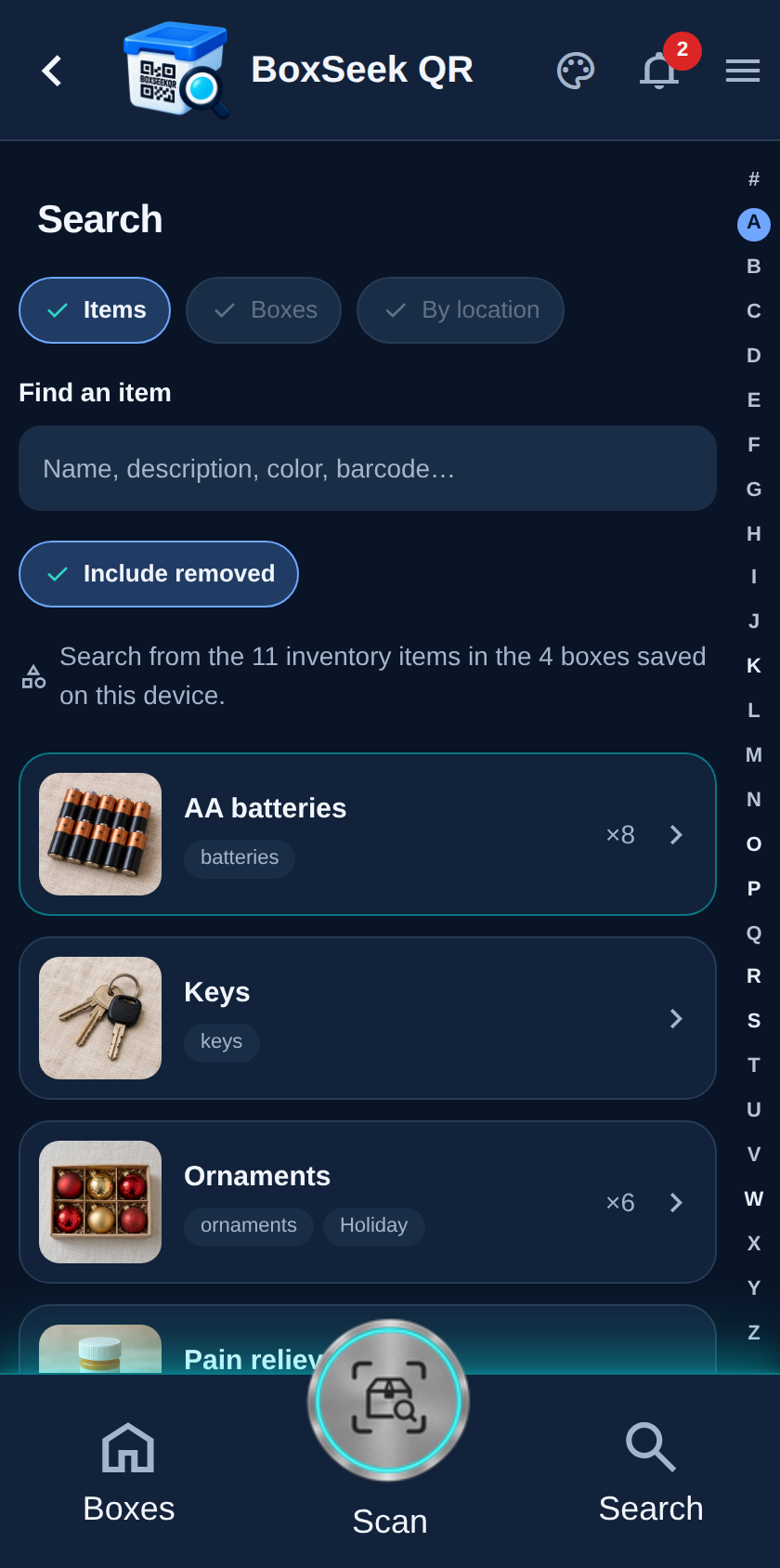
Back on Items, Include removed also shows belongings that are no longer in active storage. Leave it off for normal hunting; turn it on when you need something you already took out or marked removed.