Step 1
Introduction and sample
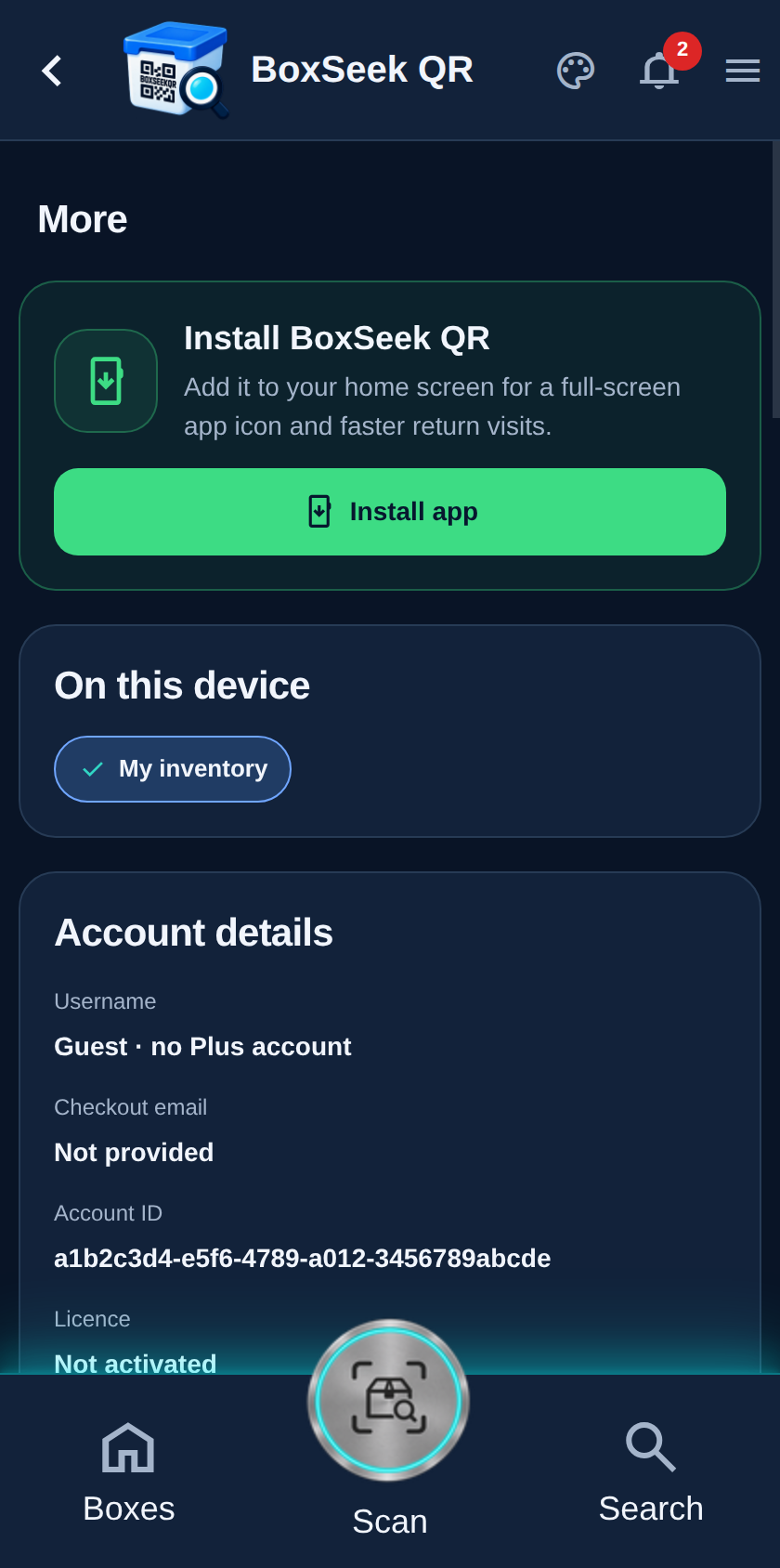
This card holds three controls: Replay introduction, Refresh sample inventory, and Remove sample inventory.
 BoxSeek QR
Tutorial
Tutorial 14
When you are done exploring the samples—or want the tour again—use Introduction and sample on More.
This card holds three controls: Replay introduction, Refresh sample inventory, and Remove sample inventory.
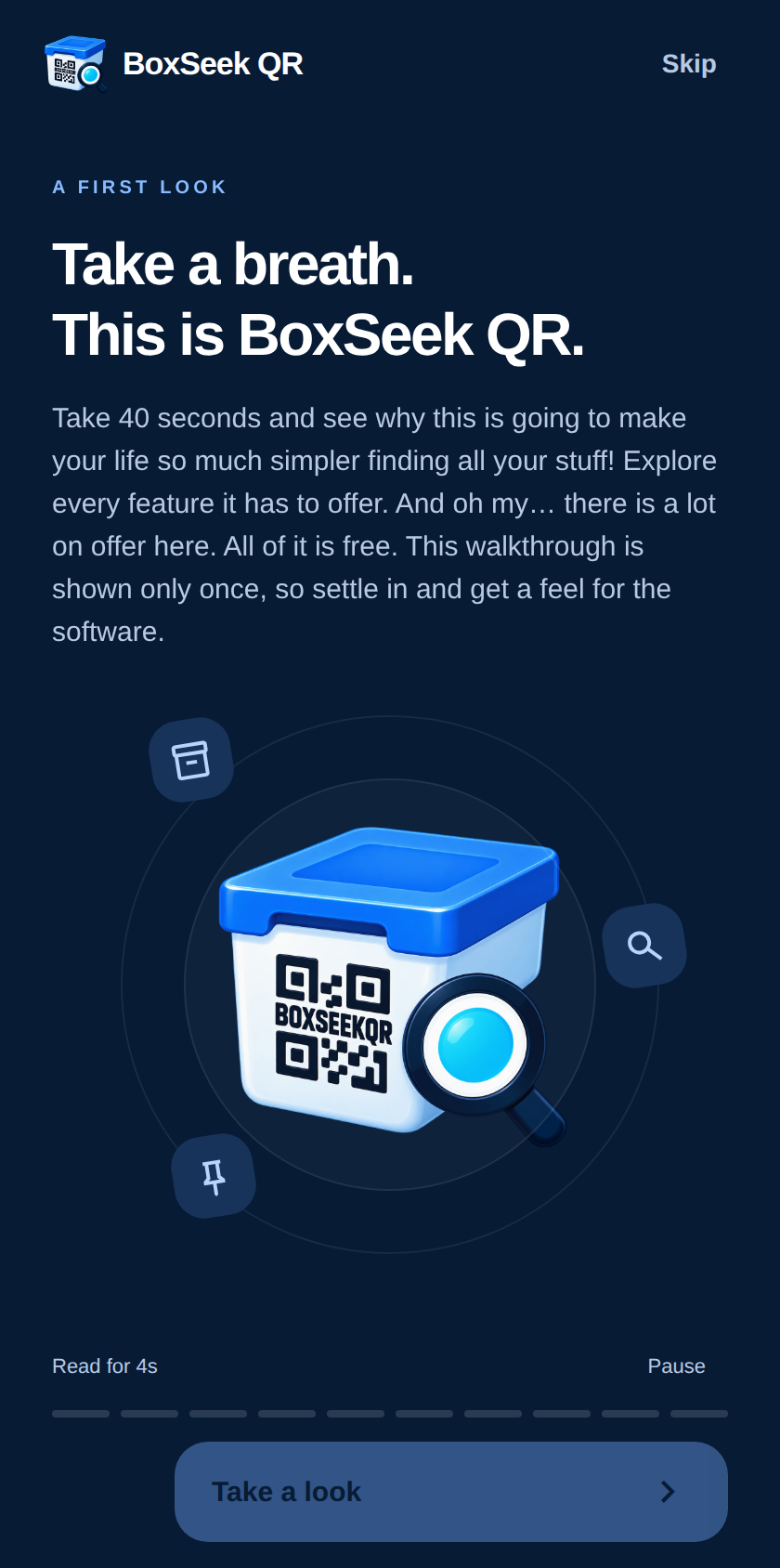
Tap Replay introduction to walk through the feature slides again—labels, photos, search, lending, care, pins, and seasons.
Because you already finished the tour once, Skip returns you to the app without changing inventory. Replay is only a refresher.
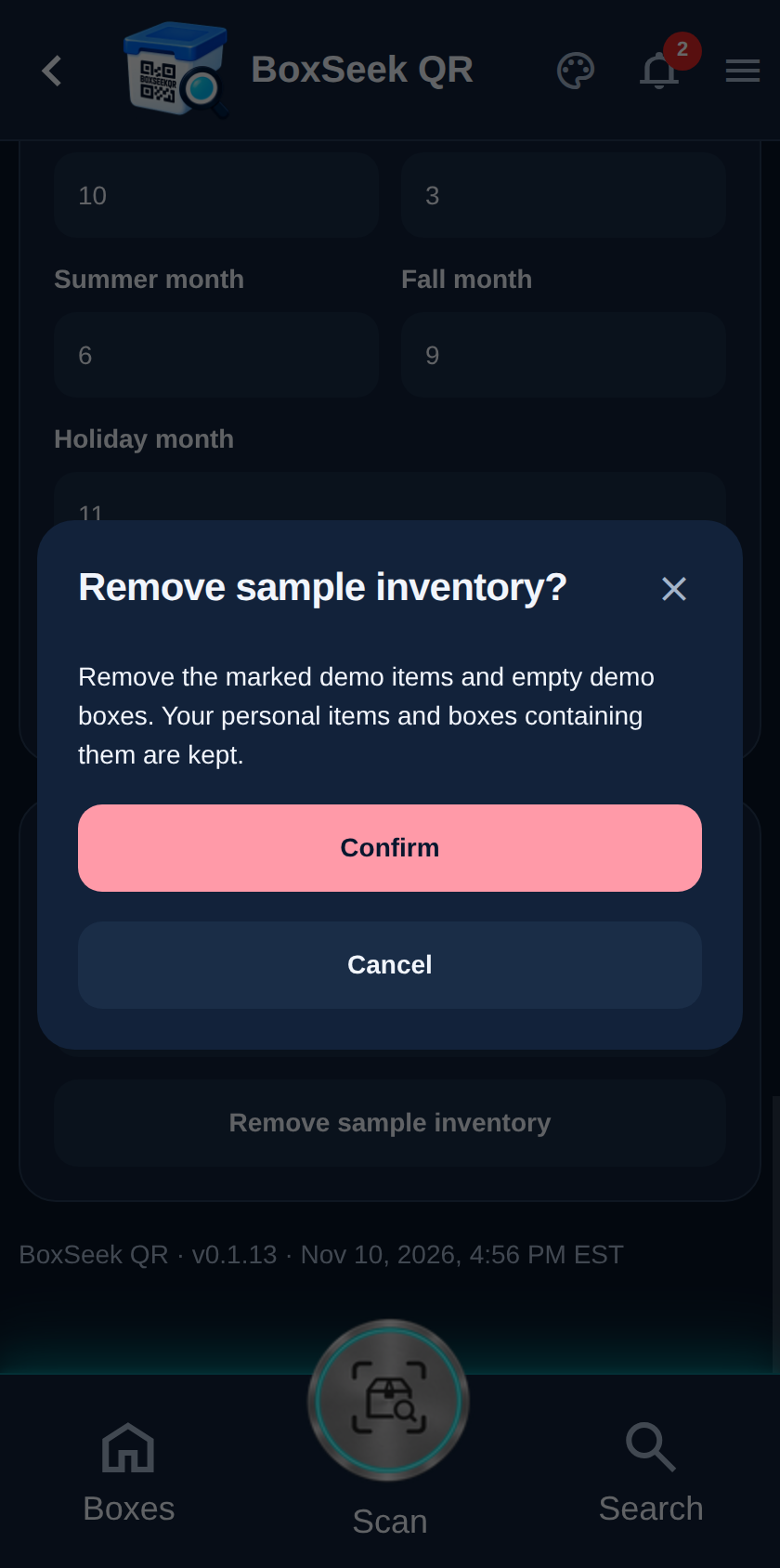
Remove sample inventory asks for confirmation. It deletes marked demo items and empty demo boxes, and keeps your personal items and any demo box that still holds your things. Use Refresh sample inventory if you want the samples back later. Cancel if you still want the demo around while you learn.