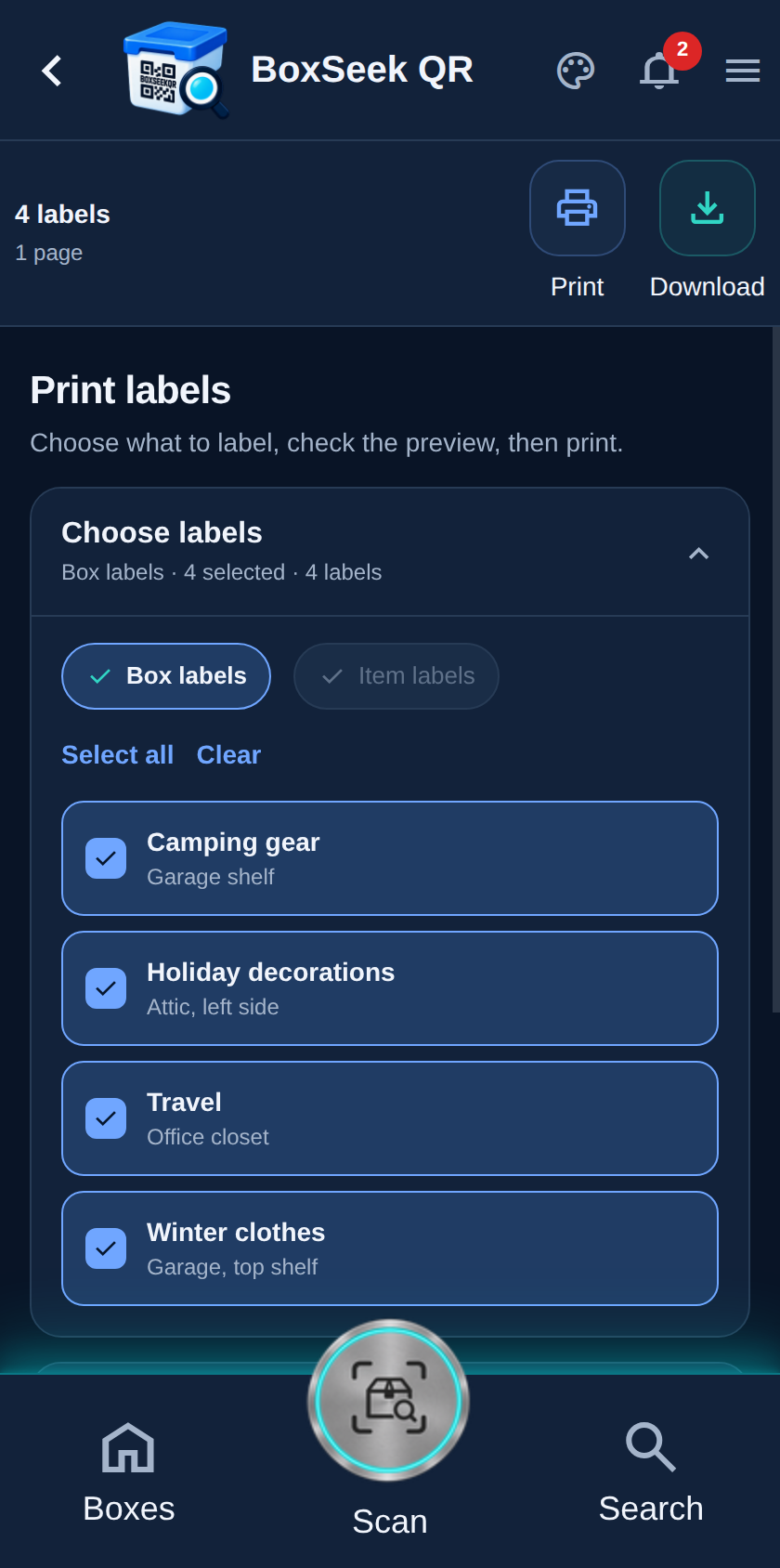
Step 1
Open Print labels
From Boxes, tap Print labels. You can also open print from a box (Print label) or from an item’s More menu. The screen has four sections: Choose labels, Preview, Label setup, and Advanced alignment.
 BoxSeek QR
Tutorial
Tutorial 03
Print stickers for the Camping gear box and Wool sweater item you added earlier. Choose what to print, check the preview, set paper and label size, then Print or Download.
From Boxes, tap Print labels. You can also open print from a box (Print label) or from an item’s More menu. The screen has four sections: Choose labels, Preview, Label setup, and Advanced alignment.
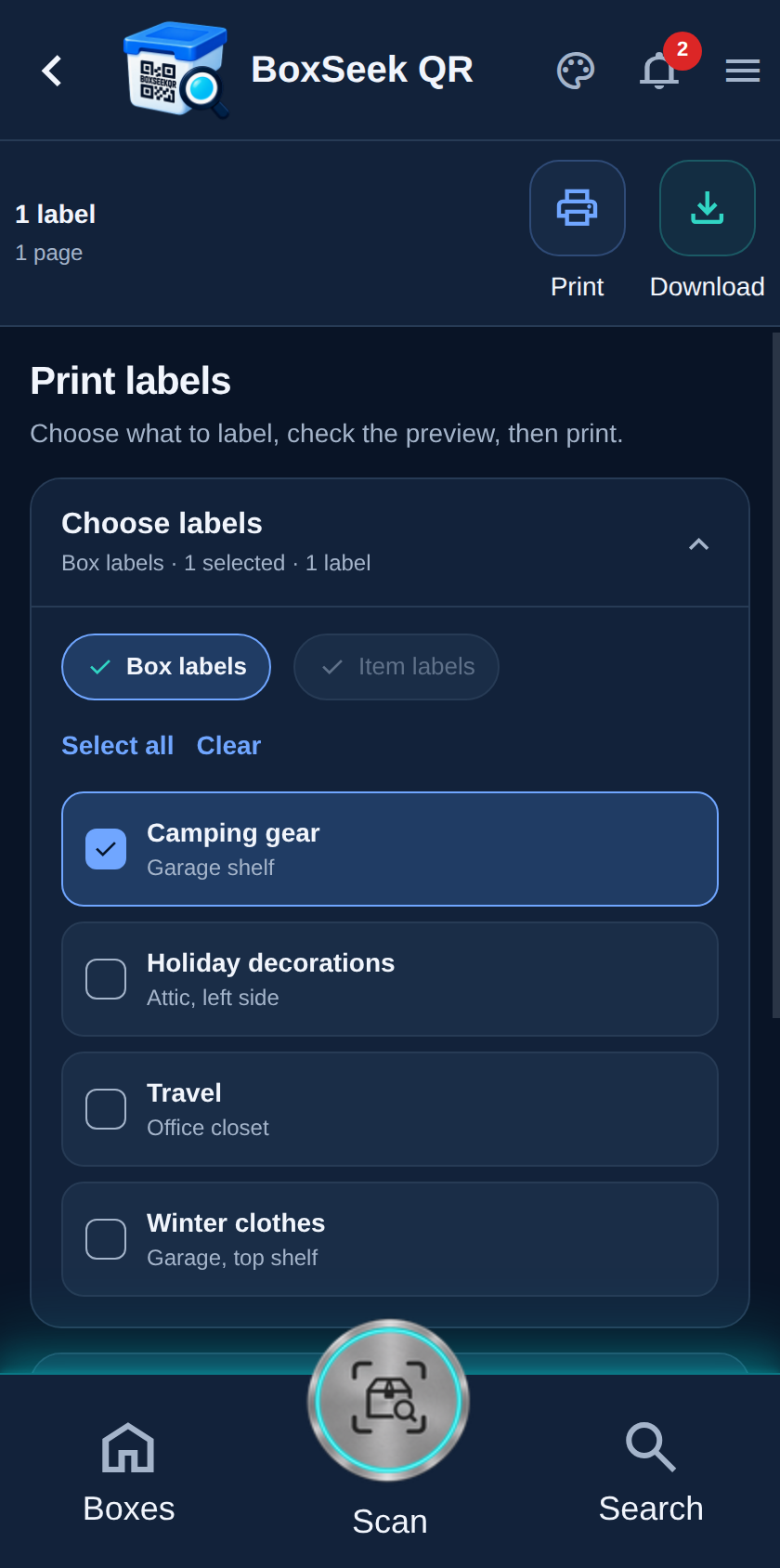
Under Choose labels, use Box labels for stickers that identify a whole box. Select all / Clear help when the list is long. Here we print only Camping gear.
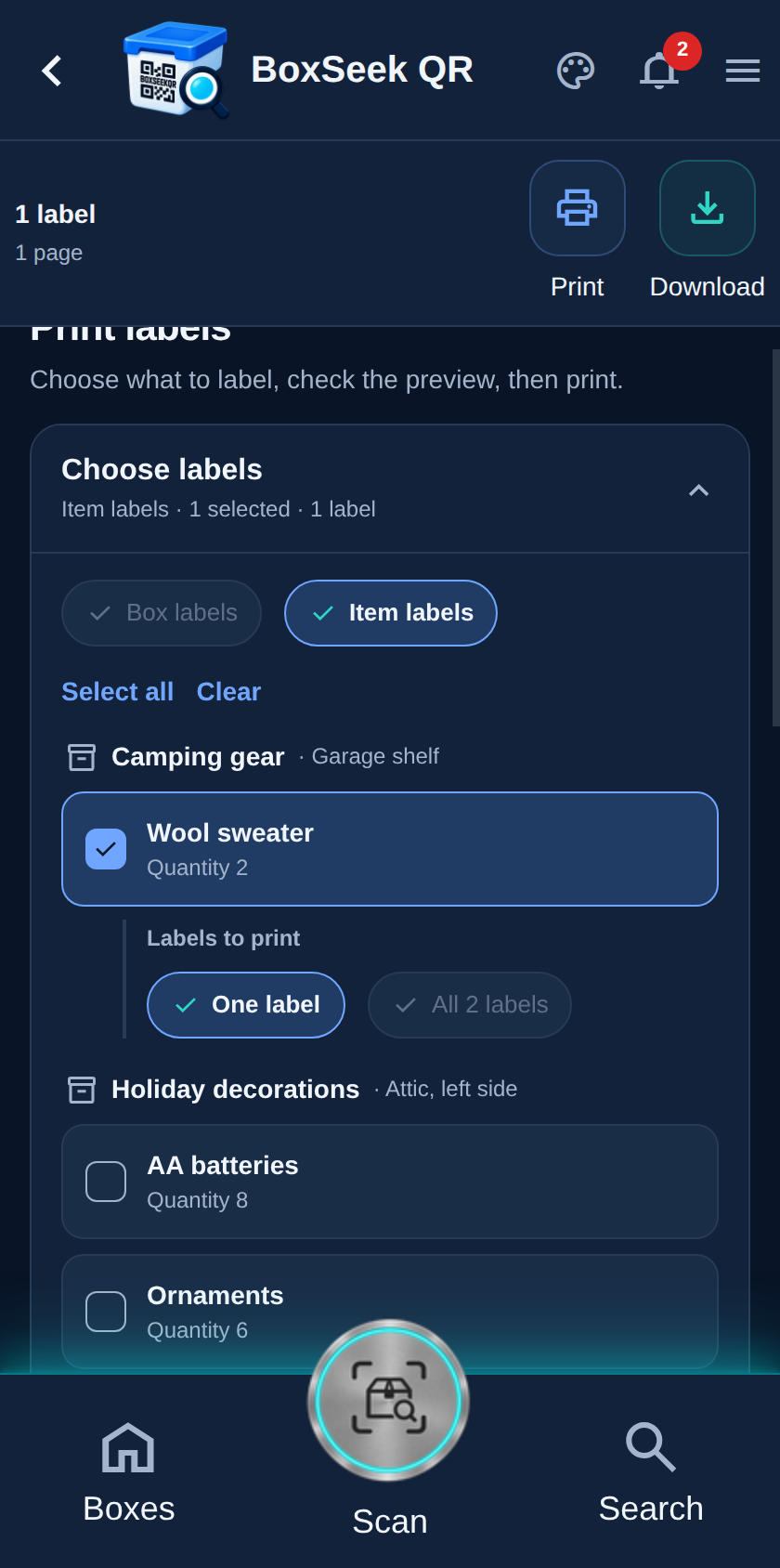
Switch to Item labels for stickers on individual belongings. Select Wool sweater. When quantity is more than one, choose One label or All N labels if each unit needs its own sticker.
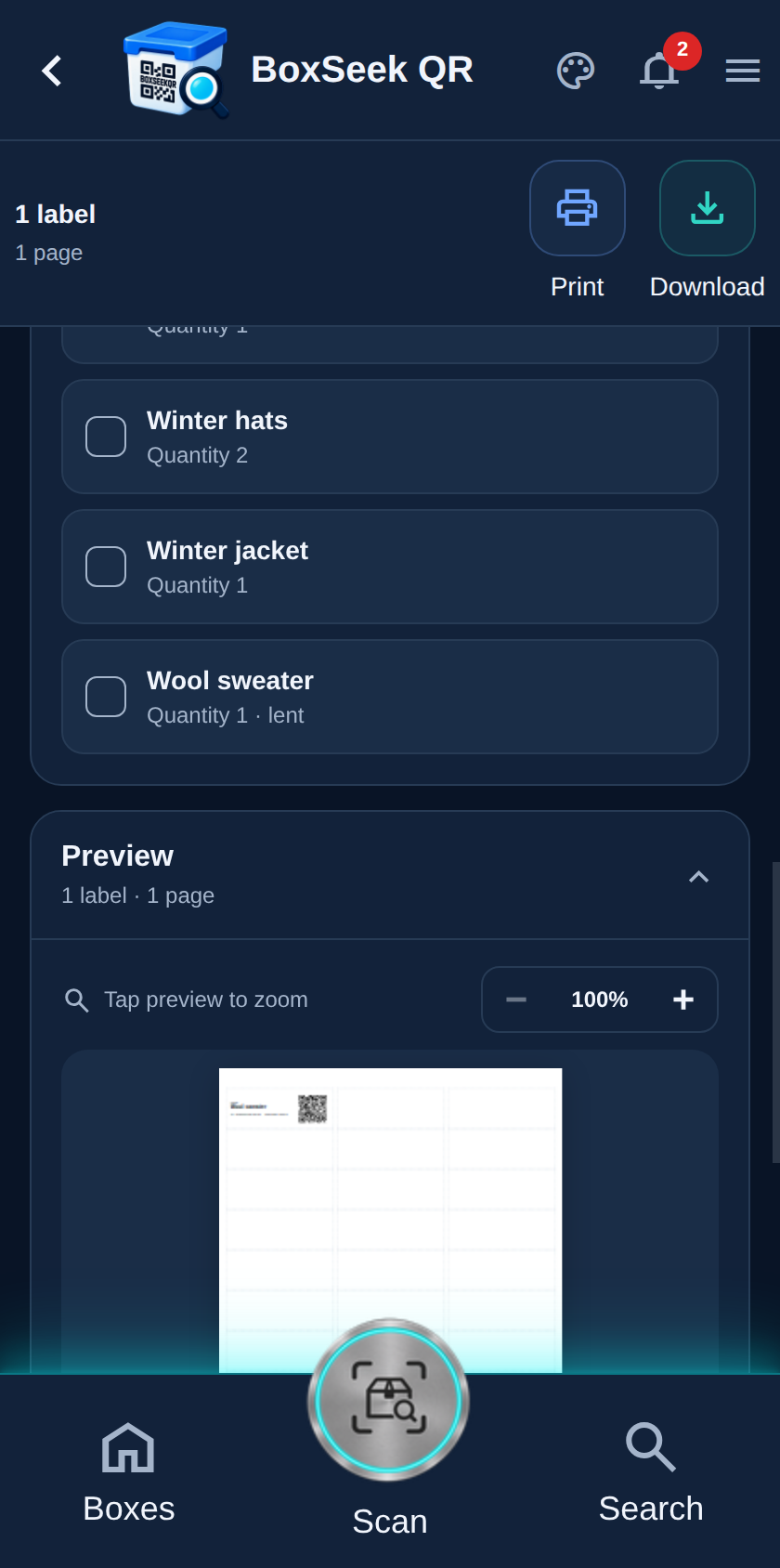
Open Preview to see the sheet. Zoom in, change pages if needed, and confirm the name and QR look sharp. You can select both box and item labels in one print job by choosing them before you print.
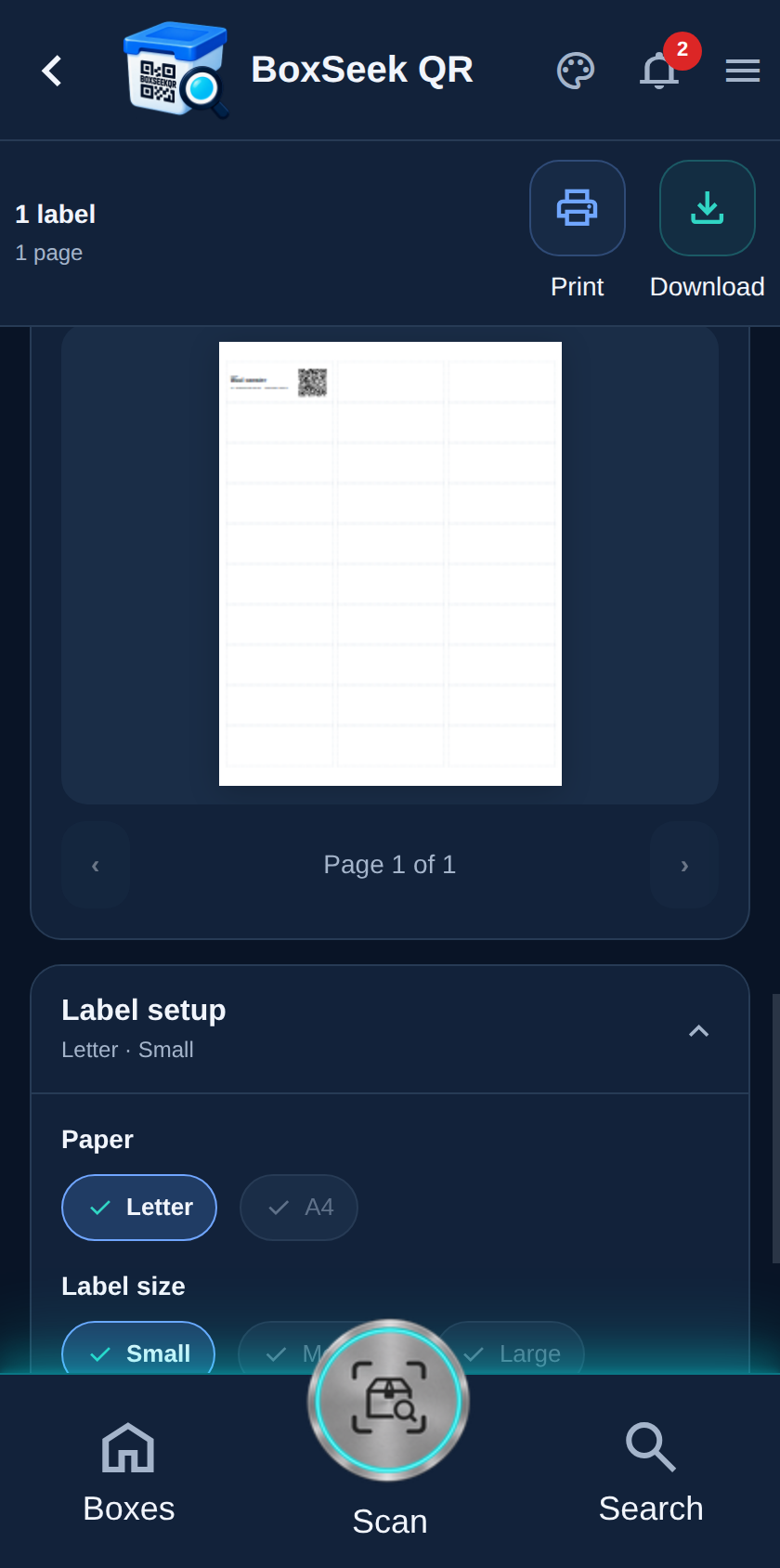
Open Label setup for everyday choices:
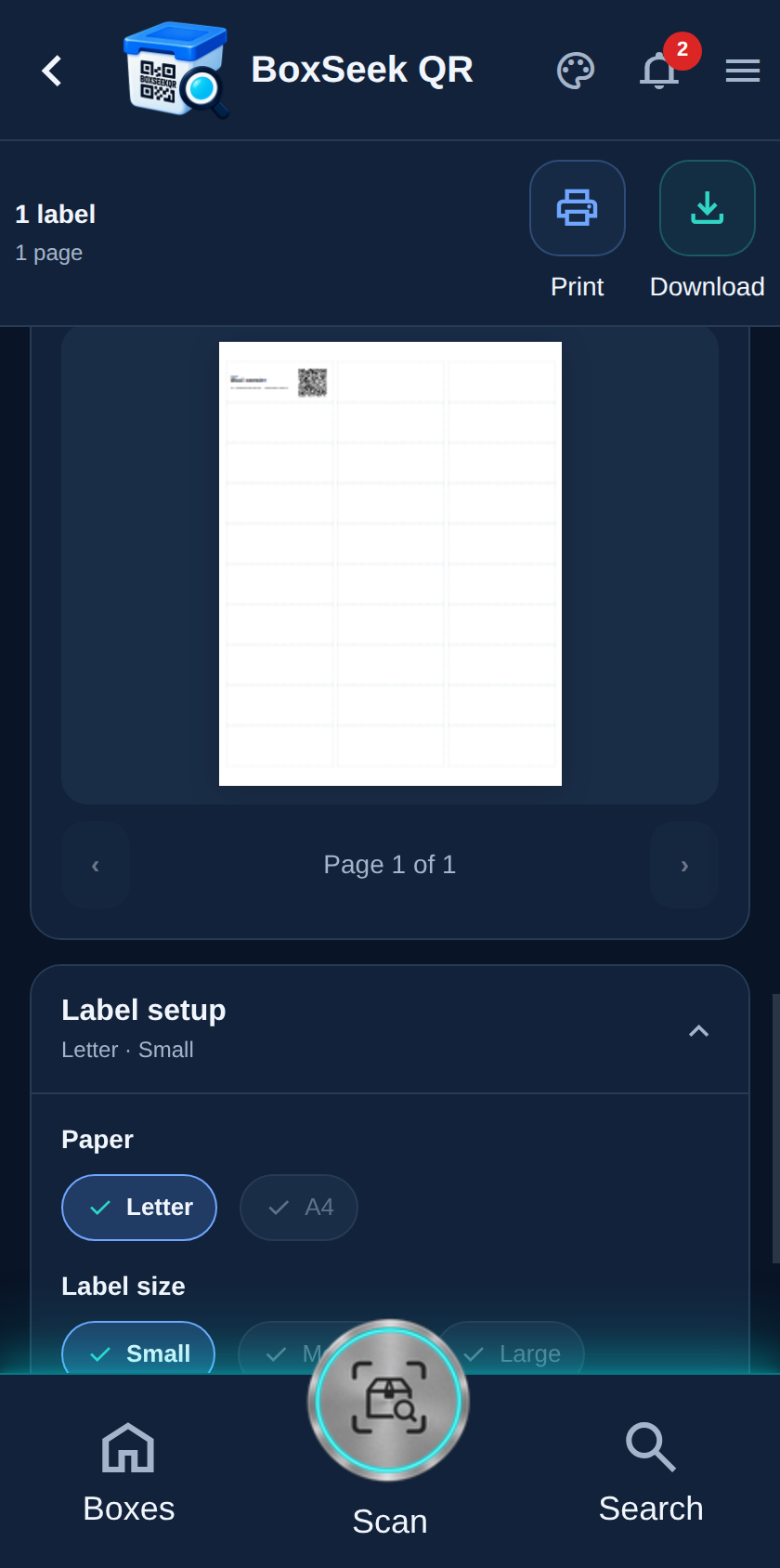
Advanced alignment exists if a sheet prints a little high, low, or sideways. You can tweak measurements and save alignment on this device. Most people can leave it closed and use Label setup only.
When the sheet looks right, use the actions at the top:
Either way, print at 100% / Actual size, match Letter or A4 to what you set, and turn off browser headers and footers so the labels line up on the sheet.