
Tutorial 11

Account details

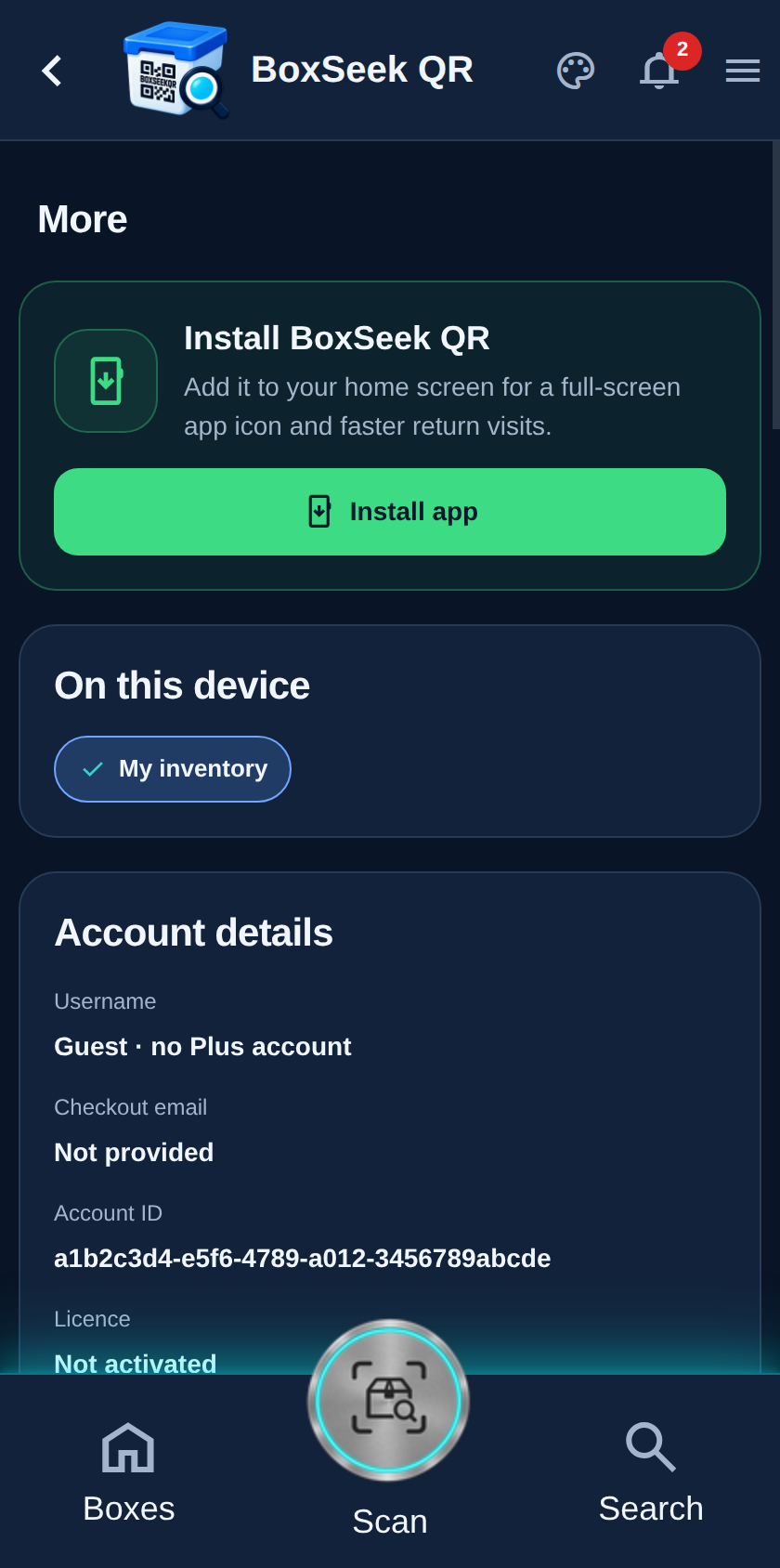
Account details answers “who is this phone?”—guest or Plus username, licence seat, plan, and how many AI-assisted additions you still have.

Account details card with username, licence, and plan fields
Step 1

What the fields mean

On More, open Account details. Typical rows:

  • Username — Plus recovery name, or Guest if you have not activated
  • Checkout email — email from Stripe when you subscribed
  • Account ID — stable id for this inventory’s cloud identity
  • Licence — whether QR+ is active on this phone, on another phone, or not activated
  • Plan — which BoxSeek QR+ plan is linked
  • AI-assisted additions remaining — tokens left for photo-assisted Quick Add
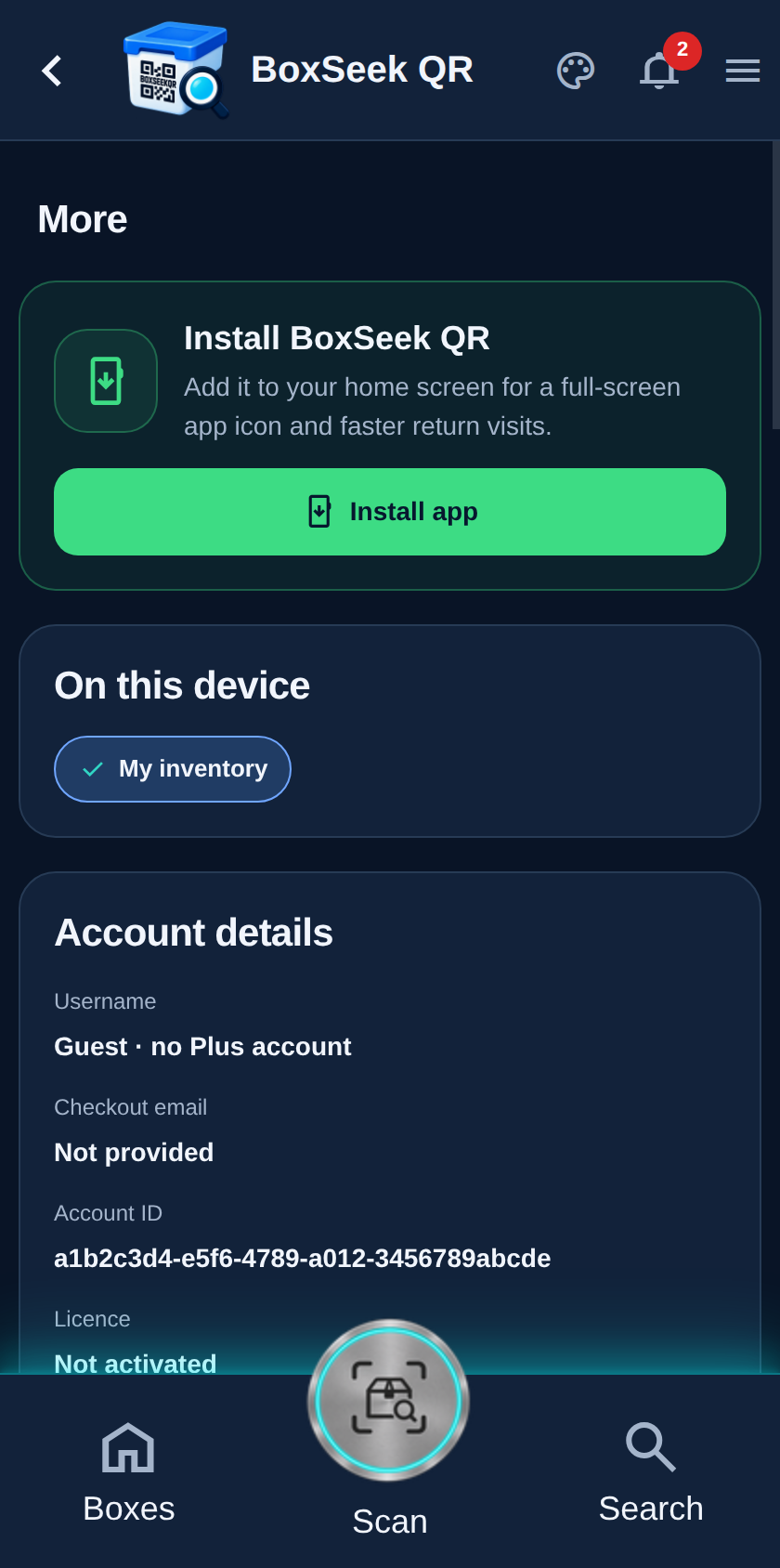
Account actions including Activate BoxSeek QR+ and Move licence
Step 2

Activate, refresh, and cloud

Refresh account details reloads the latest seat and token counts. Guests see Activate BoxSeek QR+ and Move QR+ licence. When a seat is active on this phone, you also get Backup to cloud now and Restore from cloud now (one cloud slot per account).